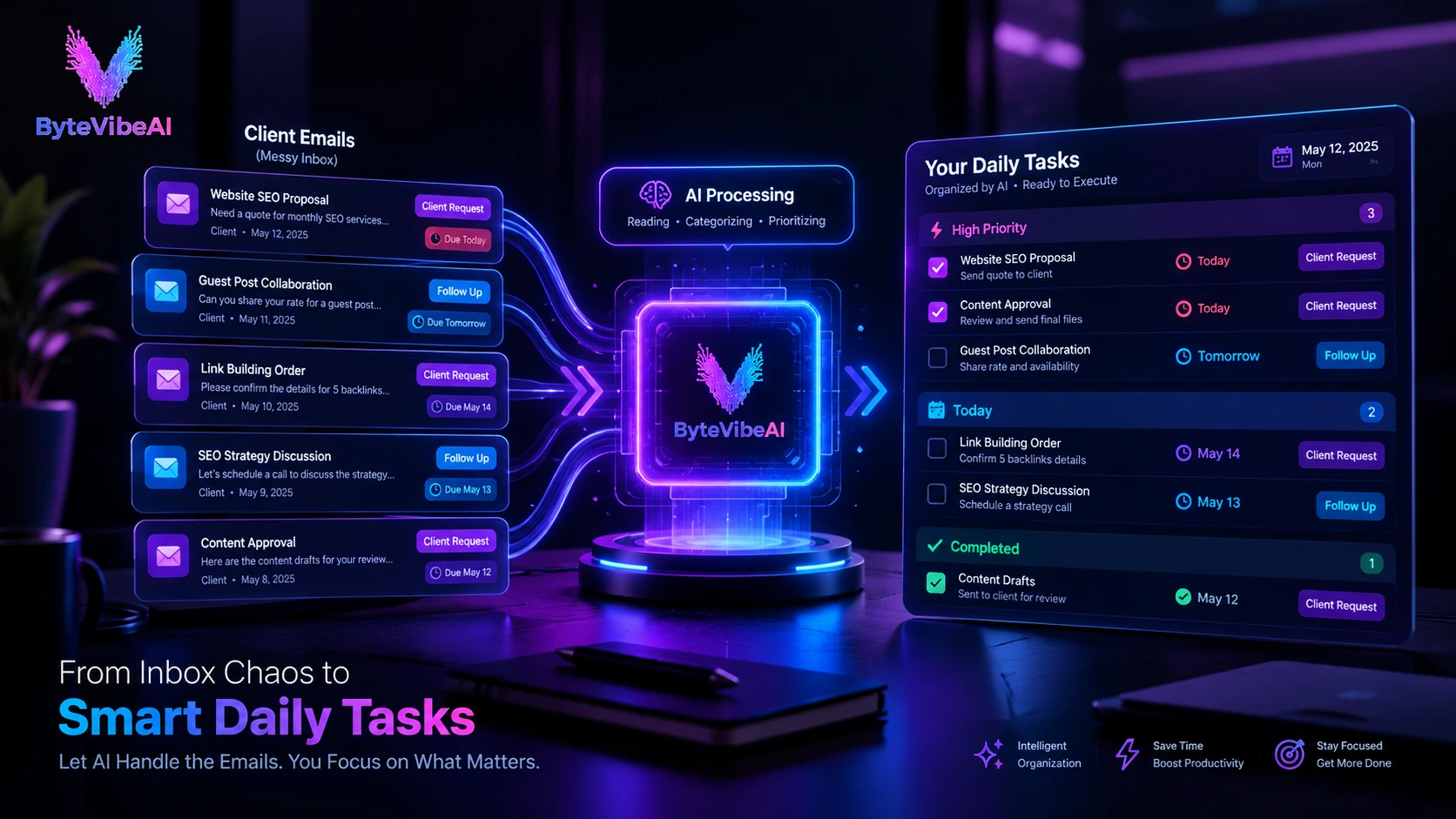
How to Turn Client Emails Into Tasks With AI (2026)
Managing client emails can quickly become one of the most time-consuming parts of a workday. One email may contain a new request, a deadline, a question, a revision, and a follow-up that you need to remember later. When several clients are sending messages throughout the day, it becomes easy to lose track of what needs to be done first.
This is where AI can help.
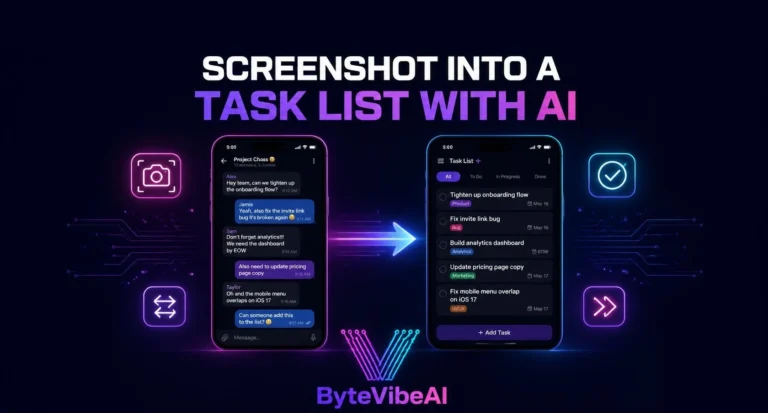
Instead of treating your inbox as a list of messages, you can use AI to turn client emails into tasks, identify important deadlines, organize follow-ups, and build a clearer daily work plan.
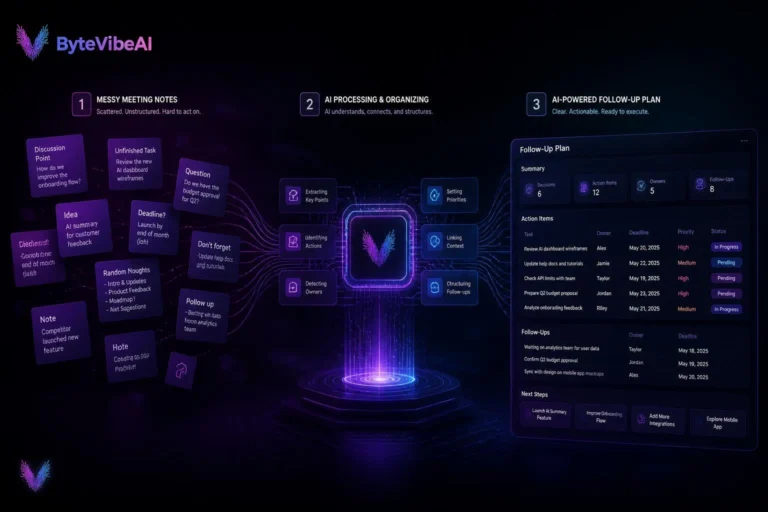
The important part is not simply asking AI to summarize your inbox. A useful workflow should help you move from email → action → priority → task list. In this guide, you’ll learn how to build that workflow without making your productivity system unnecessarily complicated.
Why Client Emails Can Become a Productivity Problem
Client emails often look simple when you read them one at a time. The problem starts when several emails arrive from different clients during the same day.
- A client asking for website changes
- Another requesting a report by Friday
- A customer asking a question that needs research
- A client requesting a revision
- A follow-up about something you haven’t finished yet
None of these messages may take very long to read. But remembering every request, deadline, and follow-up can create unnecessary mental work. You may end up opening the same email several times just to remember what you were supposed to do.
A better system is to turn important email requests into clear, actionable tasks.
What Does It Mean to Turn Client Emails Into Tasks?
When you turn client emails into tasks, you’re taking the useful action items from an email and converting them into specific pieces of work.
“Hi Sarah, could you update the homepage headline, replace the hero image, and send me the revised version by Thursday? Also, please let me know if you need anything from our side.”
Instead of leaving this as one message sitting in your inbox, you could turn it into:
- Client: Sarah’s Web Project
- Tasks:
- Update homepage headline
- Replace hero image
- Prepare revised version
- Send updated version to client
- Deadline: Thursday
- Follow-up: Ask client for anything needed to complete the work
This is much easier to work with than trying to remember the contents of the original email.
How AI Helps With Client Email Management
AI can make this process faster by analyzing the email and separating the information into useful categories.
- Action items — What actually needs to be done?
- Deadlines — When does the work need to be completed?
- Priority — Is the request urgent or routine?
- Follow-ups — Does someone need a response later?
- Questions — Is the client waiting for an answer?
- Missing information — Is something unclear?
- Project context — Which client or project does the request belong to?
This is more useful than simply asking for a short summary. A summary tells you what the email says. A task list tells you what you need to do next. That difference can make an AI-powered email workflow much more practical for freelancers, remote workers, consultants, and small teams.
If you also use AI for writing, editing, and improving content, you can explore our guide to
Best Free AI Writing Tools for Bloggers and Freelancers to build a more complete AI-powered workflow.
What Should AI Extract From a Client Email?
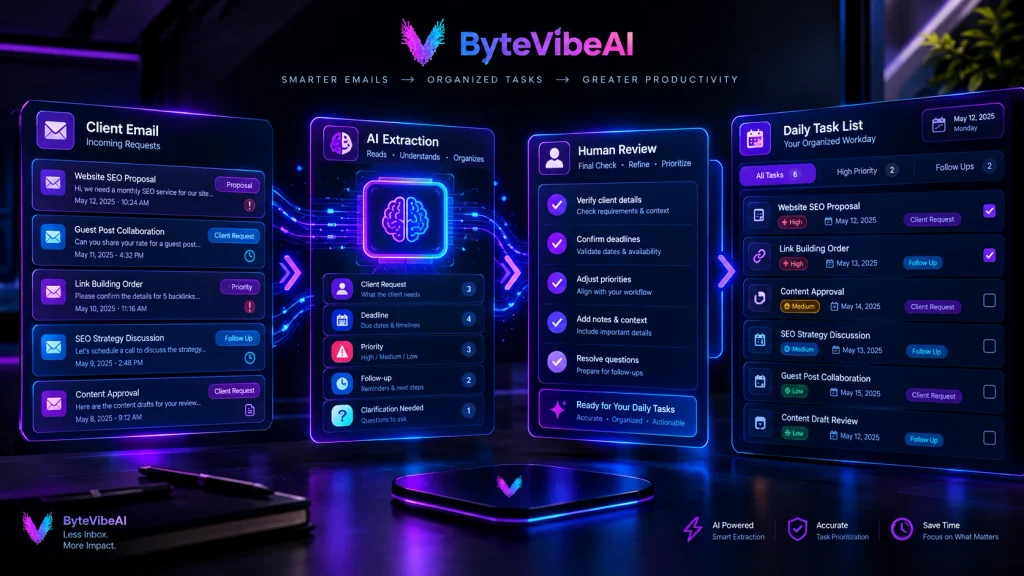
You don’t need AI to turn every sentence into a task. The goal is to extract the information that actually affects your work.
1. Action
What does the client want you to do?
- Action: Update the product page.
2. Deadline
Did the client mention a specific date or time?
- Deadline: Thursday.
If the client does not provide a deadline, AI should not invent one.
3. Priority
The request may be urgent, normal, or something that can wait. However, AI should treat priority as a suggestion unless the client clearly indicates urgency.
4. Follow-Up
Some emails don’t require immediate work but do require a response later.
- Follow-up: Confirm whether the client approved the revised design.
5. Missing Information
This is an especially useful part of the workflow. If the client asks you to make a change but doesn’t provide the required file, login, image, or information, the AI should flag it.
Instead of creating a task that cannot be completed, your list could say:
- Waiting on client: Final product images.
This prevents unnecessary back-and-forth.
Quick Example: From Client Email to Task List
Client Email
“Hi, can you update the three product descriptions on the website? Please use the new information in the attached document and have the changes ready by Wednesday. Let me know if anything is unclear.”
AI-Generated Task Breakdown
- ⚡ Task: Update three product descriptions
- 📎 Reference: Use information from attached document
- 📅 Deadline: Wednesday
- 💬 Follow-up: Ask client if clarification is needed
- 🔎 Review: Check all three descriptions before delivery
Now you have something you can actually put into your daily workflow. Instead of reopening the email repeatedly, you have a clear set of actions.
Don’t Turn Every Email Into a Task
This is one of the most important rules. Not every client email deserves a task.
- Thank-you messages
- Status updates
- FYI information
- Completed-project confirmations
- General announcements
- Messages that don’t require any action
If you turn every email into a task, your task list can become just as overwhelming as your inbox. The goal is to identify actionable work, not create more work.
A good AI workflow should be able to separate:
Needs Action → Needs Reply → Waiting → FYI → No Action
That simple separation can make a busy inbox much easier to manage.
A Simple AI Workflow for Your Inbox
You don’t need a complicated automation system to start. A basic workflow can look like this:
Client Email
↓
AI Reads & Analyzes the Request
↓
Action Items + Deadlines + Follow-Ups
↓
You Review the AI Output
↓
Add Important Items to Your Task Manager
↓
Create Your Daily Task List
The human review step matters. AI can help organize information, but you should still check the original email before committing to an important deadline, client request, or priority. This gives you the speed of AI without handing over complete control of your work planning.
The Best Way to Start
If you’re new to AI productivity, don’t try to automate your entire inbox on day one. Start with a small experiment.
Choose a few recent client emails and ask AI to identify:
- What needs action
- The stated deadline
- Any follow-up
- Information you’re waiting for
- Anything that needs clarification
Then compare the AI output with the original emails. Once you’re comfortable with the results, you can gradually build a more organized workflow around your email and task-management tools.
This approach is easier to manage and also helps you understand where AI actually saves you time.
Create a Reusable AI Prompt for Client Emails
Once you understand what information needs to be extracted from a client email, the next step is making the process repeatable. Instead of explaining your requirements to AI every time, create one reusable prompt.
You can use a prompt like this:
Analyze the client email below and turn it into an actionable task list. Identify the client request, specific tasks, stated deadlines, priority signals, follow-ups, questions, and anything I am waiting for from the client. Do not invent deadlines or information that is not included in the email. Separate urgent work from normal tasks and clearly mark anything that needs clarification. Keep the output short and practical so I can add it to my daily task manager.
Then paste the client email underneath it. This gives AI a clear structure to follow instead of simply asking it to “summarize this email.”
Add a Priority System
A long list of tasks is not automatically a useful list. If you have ten tasks waiting for you, you still need to know which ones deserve attention first.
A simple three-level system can help:
🔴 High Priority
Use this for work that has:
- A close deadline
- A client waiting for a response
- A problem affecting a live project
- A clearly stated urgent request
🟡 Normal Priority
These are important tasks that need to be completed but don’t require immediate attention. Examples include:
- Regular content updates
- Planned revisions
- Research requests
- Routine client work
⚪ Low Priority
These are tasks that can wait without affecting an immediate deadline or client deliverable. For example:
- Optional improvements
- Future ideas
- Non-urgent updates
AI can suggest a priority based on the email, but you should make the final decision. A client saying “when you have time” should not automatically become a high-priority task simply because AI sees the request.
Separate Deadlines From Priorities
One useful improvement is to keep deadline and priority as separate pieces of information.
For example:
- Task: Update landing page
- Deadline: Friday
- Priority: Normal
Another task could be:
- Task: Fix broken checkout button
- Deadline: Not stated
- Priority: High
This distinction matters because something can be important even when the client has not given you a specific deadline. Likewise, a task with a deadline several weeks away may not need to appear at the top of today’s list.
Turn Multiple Client Emails Into One Daily List
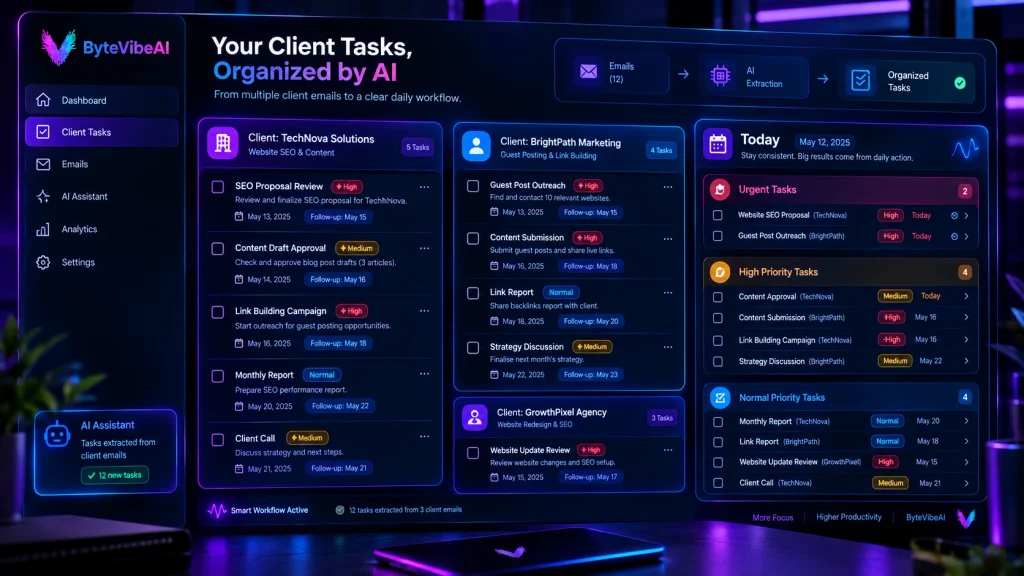
Now imagine you work with three clients. Instead of keeping three separate mental lists, you can ask AI to organize the requests together.
- Client A: Update homepage copy, Replace two images, Send revision by Wednesday
- Client B: Review campaign draft, Reply to feedback, Prepare revised version by Friday
- Client C: Check analytics report, Investigate traffic drop, Ask client for access to the new dashboard
AI can help organize these requests into a daily workflow:
Today’s Task List
🔴 High Priority
- Investigate Client C’s traffic drop
- Reply to Client B’s feedback
🟡 Normal
- Update Client A’s homepage copy
- Replace Client A’s images
- Review Client B’s campaign draft
⚪ Waiting
- Client C dashboard access
📅 Upcoming
- Client A revision — Wednesday
- Client B revised campaign — Friday
This is much easier to manage than jumping between multiple email threads throughout the day.
Quick Overview of an AI Email-to-Task Workflow
- ⚡ Step 1 — Collect Emails: Goal: Identify client messages that require action.
- 🧠 Step 2 — Analyze With AI: Goal: Extract tasks, deadlines, follow-ups, and missing information.
- 📌 Step 3 — Review the Results: Goal: Make sure AI understood the original email correctly.
- 📋 Step 4 — Add Real Tasks: Goal: Move only actionable work into your task manager.
- 🎯 Step 5 — Prioritize: Goal: Decide what needs attention today.
- ✅ Step 6 — Complete & Follow Up: Goal: Finish the work and respond to the client when needed.
This process keeps AI in the role of an assistant rather than allowing it to make every work decision for you.
Keep the Original Email Connected to the Task
One small habit can make this workflow much more useful. Whenever possible, keep a reference to the original client email alongside the task.
For example:
- Task: Update homepage headline
- Client: ABC Design
- Deadline: Thursday
- Source: Original client email
Why does this matter? Because the AI-generated task may contain only a short summary. When you start working, you may need the original wording, attachment, previous discussion, or other details from the email. A task without context can create another problem: you may have to search your inbox all over again. Keeping the original email connected gives you both the action and the context.
For client communication that starts with outreach, you may also find our guide
Best AI Prompts for Writing Cold Outreach Emails That Get Replies useful.
Don’t Let AI Invent Client Requirements
This is especially important when dealing with professional work. Suppose a client says:
“Please send the revised design by Friday.”
AI should not turn that into:
“Send the revised design by Friday at 5 PM.”
The client never said 5 PM. Similarly, if the client does not mention a budget, file format, meeting time, or specific requirement, AI should not make one up simply to complete the task.
A good instruction to include in your prompt is:
“If information is missing, mark it as ‘Not specified’ instead of guessing.”
This simple rule can make your AI-generated task list much more reliable.
What About Gmail, Outlook, and Task Apps?
You don’t necessarily need to change your email provider to use this workflow. The basic process can work with different combinations of email and productivity tools.
For example, you might use:
- Gmail + AI + Google Tasks
- Outlook + AI + Microsoft To Do
- Email + AI + a project management tool
The exact setup depends on your existing workflow.
Some platforms also provide built-in AI features or integrations that can help summarize emails, identify action items, or move information into task systems. The available features can vary by product, account type, and subscription, so check the current documentation before relying on a particular automation.
If you often turn spoken ideas or meeting notes into written tasks, see
Top 5 Free AI Speech-to-Text Tools for Fast Blog Drafting
for tools that can help capture ideas faster.
The important idea is not the specific app. It’s the workflow:
Email → Extract → Review → Task Manager → Daily Plan
Use AI for Organization, Not Blind Automation
It can be tempting to automate everything as soon as you discover that AI can extract tasks from emails. But fully automatic task creation can create its own problems.
Imagine receiving 50 emails and ending the day with 35 new tasks. Your inbox problem has simply become a task-list problem.
A better system is to let AI suggest tasks and then review the suggestions before they become part of your actual workload.
You can remove:
- Duplicate tasks
- Requests that are already completed
- FYI messages
- Tasks that don’t require action
- Incorrectly interpreted requests
This keeps your task manager useful instead of filling it with unnecessary work.
A Better Daily Routine for Client Work
Once your email-to-task system is working, you can create a simple routine:
- Morning: Review important client emails and let AI extract potential tasks.
- First Review: Check deadlines, urgent requests, and anything blocking your work.
- Daily Planning: Choose the tasks you realistically expect to complete that day.
- During the Day: Work from your task list instead of constantly switching between your inbox and different client threads.
- End of Day: Review unfinished tasks and check whether any client needs an update.
This creates a much calmer workflow. You are no longer asking yourself: “What did everyone email me about today?” Instead, you have a clear list of what needs to happen next.
How to Handle Client Follow-Ups With AI
Not every client request can be completed immediately. Sometimes you finish your part of the work but need the client to send a file, approve a change, answer a question, or provide access to something before you can continue.
This is where a simple follow-up system becomes useful.
For example:
- Task: Prepare final website revision
- Status: Waiting
- Waiting for: Client approval
- Follow-up: Send reminder if no response
You can also ask AI to review your task list and identify items that have been waiting for a response. A useful prompt could be:
Review these client tasks and identify anything waiting for a client response. Group them by client, explain what I am waiting for, and suggest which follow-ups may be due. Do not create a follow-up date unless one is already provided.
This can help you avoid the common situation where you finish your work but forget that a client is holding up the next step.
Don’t Let Your Task List Become Another Inbox
One of the easiest mistakes is creating too many tasks. If every sentence from every email becomes a separate task, your productivity system can quickly become overwhelming.
Instead, combine related actions when they belong to the same piece of work.
- Open website
- Find homepage
- Read existing headline
- Write new headline
- Compare headline
- Update headline
You could create:
- Update homepage headline
Then add the smaller actions as notes or a checklist if your task manager supports them. Your daily list should tell you what needs to get done, not document every tiny movement you make while completing the work.
Review AI-Generated Tasks Before You Start Working
AI can save time, but you should still review its output. Before adding a task to your daily schedule, quickly check:
- Did AI understand the client’s request?
- Is the deadline correct?
- Did it miss an important detail?
- Is this actually something I need to do?
- Is another person responsible for it?
- Am I waiting for something before starting?
- Is this a duplicate of an existing task?
This review usually takes much less time than fixing a misunderstanding later. It also keeps your task list connected to what the client actually asked for.
The same review-first approach is useful when improving existing content. Our guide
How to Use AI to Rewrite Old Articles and Boost SEO Traffic explains how to use AI while keeping human review in the process.
Protect Client Information When Using AI
Client emails can contain sensitive business information. Depending on your work, an email might include:
- Personal information
- Customer details
- Contracts
- Pricing information
- Financial information
- Private business plans
- Login or account details
- Confidential documents
Before copying client emails into an AI service, understand how that service handles your information and what permissions you are granting through any email integration. You should also avoid putting passwords, private access keys, payment details, or other highly sensitive information into an AI prompt.
If your company has a policy about using AI with work information, follow that policy.
A useful rule is simple: Only provide the AI with the information it actually needs to perform the task.
You can often remove unnecessary personal or confidential details before asking AI to organize an email.
Common AI Email-to-Task Mistakes
AI can make email management easier, but it does not eliminate the need for judgment. Here are some common mistakes to avoid:
- Mistake 1: Trusting Every AI-Generated Deadline
AI should extract deadlines from the email, not invent them. If the client says “by Friday,” keep it as Friday. Don’t assume a specific time unless the client provided one. - Mistake 2: Treating Every Email as Urgent
A client sending an email does not automatically mean the task is urgent. Look for actual urgency signals, deadlines, project impact, or explicit language from the client. - Mistake 3: Creating Duplicate Tasks
If three emails discuss the same website revision, you may only need one task. Review related emails before creating additional entries. - Mistake 4: Forgetting the Original Context
A short AI-generated task may leave out important details. Keep the original email or a reference to it connected to the task whenever possible. - Mistake 5: Automatically Sending AI-Written Replies
An AI-generated reply can save time, but client communication still deserves a human review. Check names, dates, commitments, prices, attachments, and promises before sending anything. - Mistake 6: Letting AI Decide Everything
AI can organize your workload, but you know your clients, deadlines, workload, and priorities better than the software does. Use AI to reduce repetitive work—not to give up control over your schedule.
Create a Repeatable Daily System
Once you’ve tested the workflow, you can turn it into a simple daily routine:
- Morning: Capture — Review new client emails and identify messages that require action.
- Next: Extract — Use your AI prompt to identify tasks, deadlines, follow-ups, questions, and missing information.
- Then: Review — Check the AI output against the original email.
- Next: Prioritize — Choose the work that actually needs attention today.
- During the Day: Work From the Task List — Once your daily plan is ready, use it as your main work queue instead of repeatedly scanning your inbox.
- End of Day: Review — Look at unfinished tasks and anything waiting for a client. Move tasks that genuinely need more time to another day, and prepare follow-ups where appropriate.
This creates a simple cycle:
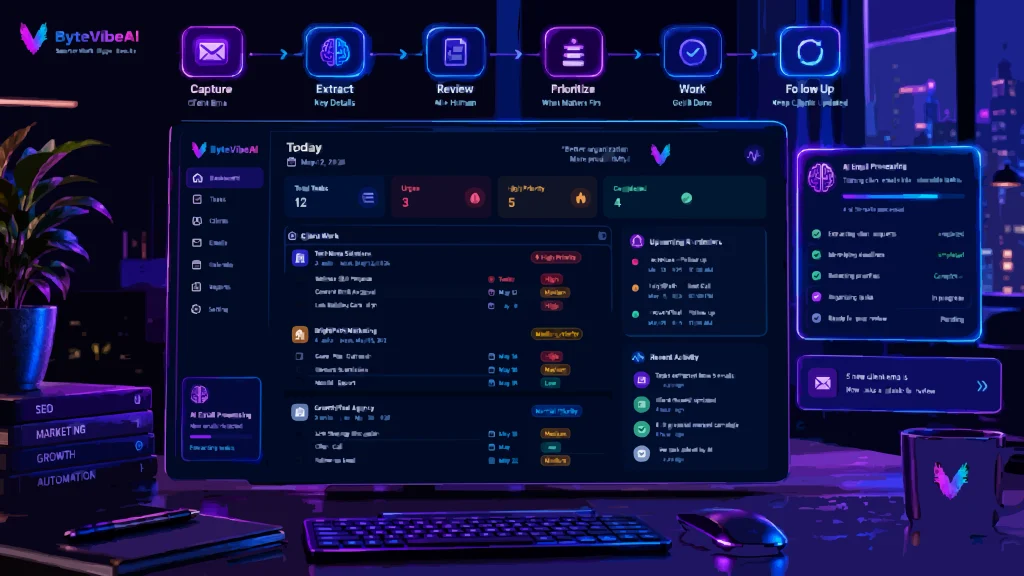
Capture → Extract → Review → Prioritize → Work → Follow Up
Once this becomes a habit, managing client requests can feel much more organized.
A Simple AI Prompt for Your Daily Review
You can also use AI at the end of the day to review your remaining client work. Try this:
Review my unfinished client tasks below. Group them by client, identify tasks with upcoming deadlines, separate items waiting for client responses, and suggest which tasks I should review tomorrow. Do not change deadlines or invent new information. Keep the output concise and practical.
This can give you a cleaner starting point the next morning. However, treat the result as a planning aid rather than a final decision. You should always make the final call based on your actual workload and client commitments.
When Should You Not Use AI for an Email?
AI isn’t necessary for every message. For a simple email such as:
“Thanks for the update. I’ll review it tomorrow.”
There is little reason to build an elaborate AI workflow.
AI becomes more useful when an email contains multiple requests, deadlines, follow-ups, project details, or information that needs to be organized. The more complicated the message, the more useful structured extraction can become.
The Complete Client Email-to-Task Workflow
By now, the process should be clear:
- ⚡ 1. Receive the client email — Identify whether it actually requires action.
- 🧠 2. Analyze it with AI — Extract tasks, deadlines, follow-ups, questions, and missing information.
- 🔎 3. Check the original email — Make sure the AI didn’t misunderstand anything.
- 📋 4. Create actionable tasks — Keep tasks specific and avoid unnecessary duplicates.
- 🎯 5. Prioritize your workload — Separate today’s work from upcoming and waiting items.
- 🕐 6. Work from your task list — Use the task manager as your daily work queue.
- 💬 7. Follow up when needed — Track anything waiting for the client.
- ✅ 8. Review at the end of the day — Carry forward only the work that still matters.
This system keeps your inbox as a communication tool instead of turning it into your entire productivity system.
Final Thoughts
Client emails are an important part of professional work, but they don’t have to control your entire day. When you turn client emails into tasks, you can move from a crowded inbox to a clearer list of actions, deadlines, follow-ups, and priorities.
The key is to keep the process simple. Let AI help you extract and organize information, but review the results yourself before turning them into real commitments. Don’t let AI invent deadlines. Don’t turn every email into a task. And don’t automatically send important client responses without checking them first.
Most importantly, protect confidential client information and understand how the AI tool or integration handles the data you provide.
A practical system can be as simple as:
Client Email → AI Extraction → Human Review → Daily Task List → Work → Follow-Up
Once you build this habit, your inbox becomes easier to manage and your daily workload becomes easier to see. The goal isn’t to make your work more complicated with another productivity system. It’s to spend less time sorting through emails and more time actually completing the work your clients hired you to do.
Build a Smarter Client Workflow With AI
Managing client emails does not have to mean keeping dozens of messages open all day. With a simple system, you can turn important emails into clear tasks, identify deadlines, organize follow-ups, and start each morning with a focused list of work.
If you want to improve other parts of your daily workflow, explore more practical AI productivity guides on ByteVibeAI and find tools that can help you spend less time organizing work and more time getting it done.
👉 Explore more AI Productivity guides on ByteVibeAI and build a workflow that works for you.