How to Turn a Screenshot Into a Task List With AI: Easy Step-by-Step Guide
A screenshot of a meeting chat, a client message, or a handwritten list on your phone is easy to capture and easy to forget. The tasks buried inside it rarely make it onto an actual to-do list on their own.
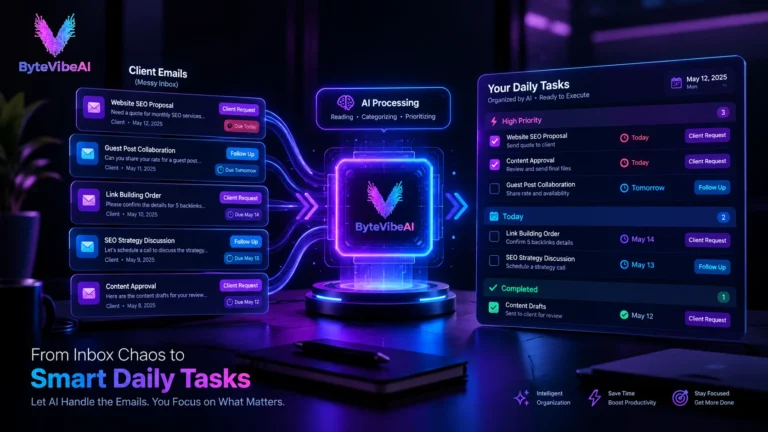
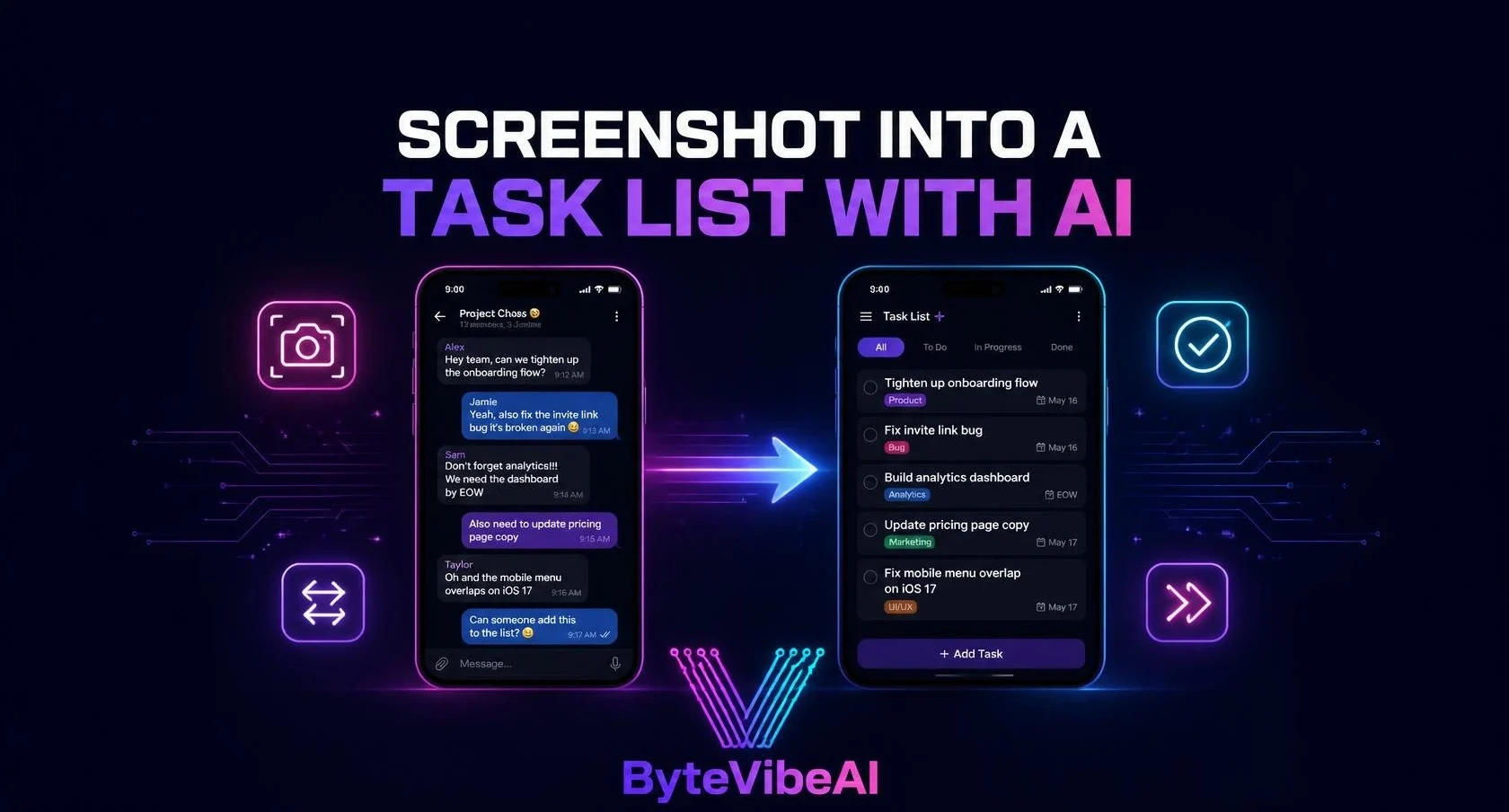
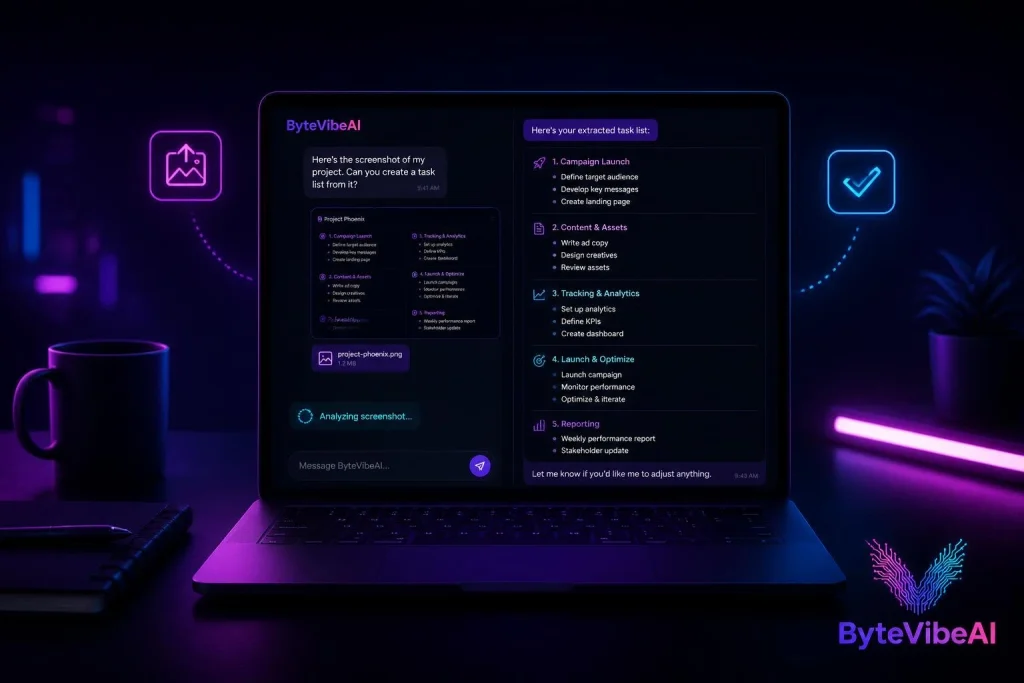
Turning a screenshot into a task list with AI solves that gap directly. Upload the image, and the AI reads the text, picks out the actual action items, and hands back a clean, usable list in seconds.
This guide walks through the exact steps, along with five free tools that handle it well. Whether you’re capturing tasks from a group chat, a project brief, or a photo of a whiteboard, this process works without any special software or technical skill.
Why Turning a Screenshot Into a Task List Saves Real Time
Manually retyping every task from a screenshot is slow, and it’s the kind of small, repetitive friction that causes things to get missed entirely.
This approach typically helps you:
- Capture tasks from chats, emails, or photos without retyping anything.
- Turn a messy, unstructured screenshot into a clean, ordered list.
- Avoid losing action items buried in long conversations.
The AI still benefits from a quick human check. But it removes the tedious part of manually extracting every item by hand.
The Step-by-Step Process
Step 1: Capture a Clear Screenshot. Make sure the text is sharp and fully visible, since blurry or cropped screenshots produce incomplete results.
Step 2: Upload It to an AI Tool. Paste or upload the image into one of the tools below and ask it to extract the tasks.
Step 3: Review the Extracted List. Quickly check that nothing important was missed or misread before moving on.
Step 4: Refine Vague Items if Needed. Break down anything too broad into clearer, actionable steps.
Step 5: Save It to Your Task Manager. Copy the finished list into whatever app you already use to track your work.
Quick Overview of the 5 Tools
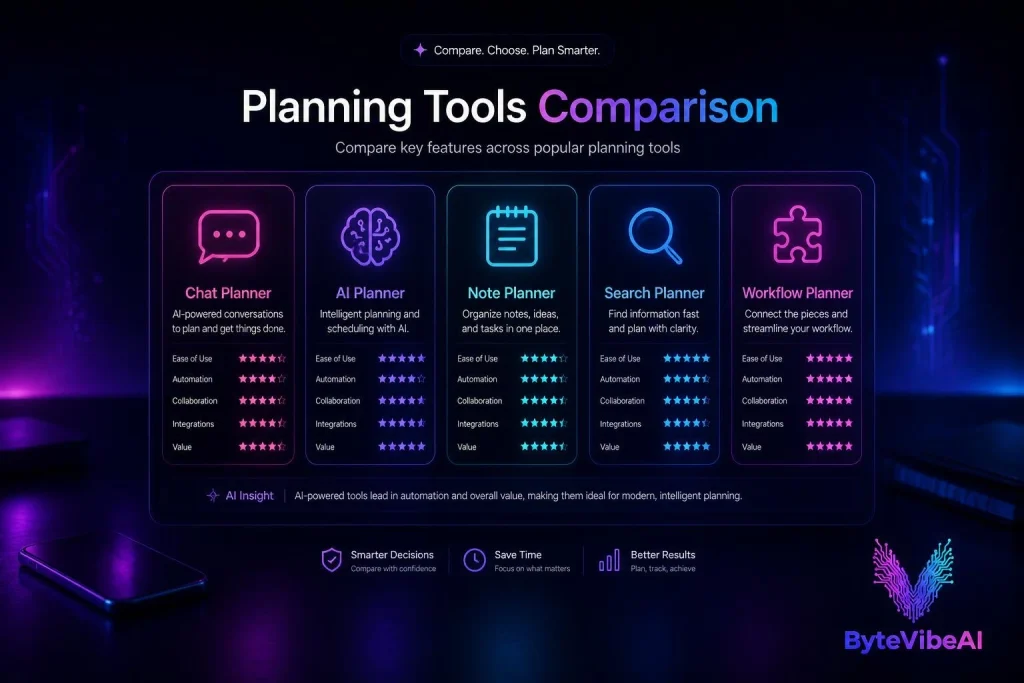
Instead of using a wide comparison table, here’s a mobile-friendly overview.
🤖 ChatGPT
Best For: Fast, conversational task extraction from any screenshot.
Free Plan: ✅ Available
🧠 Claude
Best For: Careful, accurate reading of dense or messy text.
Free Plan: ✅ Available
📝 Taskade
Best For: Automatically structured notes and task lists.
Free Plan: ✅ Available
🔍 Google Lens
Best For: Instant, no-signup text extraction.
Free Plan: ✅ Fully free
🧩 Goblin.tools
Best For: Breaking vague tasks into clear, doable steps.
Free Plan: ✅ Fully free
How We Selected These Tools
Rather than covering every OCR tool on the market, this focuses on tools built specifically for turning a screenshot into a task list, not just tools that go beyond plain text extraction to identify actual tasks.
The tools below were chosen based on:
- A free plan that handles real, everyday screenshots
- No signup required for basic use, in most cases
- Accurate reading of casual text, not just clean documents
- Usefulness for both conversational screenshots and structured images
We skipped tools that only extracted raw text without any task-level structure.
1. ChatGPT
ChatGPT reads an uploaded screenshot and, with a simple prompt, picks out the action items conversationally, formatting them as a clean list right in the chat.
I dropped in a screenshot of a scrolling group chat once, and it correctly separated three actual tasks from the surrounding small talk without any extra instruction.
Key Features
- Direct image upload with vision-based reading
- Conversational follow-up to refine the extracted list
- Works with chats, documents, and handwritten notes
Pros
- Handles messy, conversational screenshots well
- Easy to ask follow-up questions about unclear items
- Free tier covers regular, everyday use
Cons
- Very long screenshots sometimes need to be split into parts
- Occasional need to double-check dates or names for accuracy
Best For
Anyone who wants a fast, conversational way to pull tasks out of a chat or message screenshot.
2. Claude
Claude tends to read dense, cluttered screenshots more carefully than most tools, which makes it a strong pick when a screenshot has a lot of competing text in it.
It works especially well on screenshots with mixed content, like a project brief with both instructions and a task list buried inside.
Key Features
- Accurate reading of long, text-heavy screenshots
- Strong at separating instructions from actual action items
- Handles handwritten and typed text in the same image
Pros
- Careful, accurate extraction on cluttered images
- Good at distinguishing real tasks from general context
- Free tier is usable for regular, light use
Cons
- Slightly slower than ChatGPT on very simple, short screenshots
- Free tier has daily usage limits
Best For
Anyone working with dense, text-heavy screenshots that need careful, accurate reading.
3. Taskade
Taskade’s Screenshot to Notes tool is purpose-built for this exact task, automatically structuring extracted content into headings, bullet points, and organized sections.
Unlike a general chatbot, it hands back something closer to a finished, formatted task list from the start.
Key Features
- Purpose-built screenshot-to-task conversion
- Automatic structuring into headings and bullet points
- Direct export into a Taskade project
Pros
- Output is more structured than a general AI chat response
- No prompting required to get organized results
- Free to use for everyday screenshot volume
Cons
- Less flexible for follow-up questions than ChatGPT or Claude
- Best results come from screenshots with a clear list-like structure
Best For
Anyone who wants a ready-formatted task list without writing a prompt each time.
4. Google Lens
Google Lens offers the fastest possible starting point, instantly extracting text from any screenshot with no signup and no separate app.
It’s not built specifically for task extraction, but it’s the quickest way to get the raw text out before organizing it elsewhere.
Key Features
- Instant text extraction directly from an image
- No account or signup required
- Built into most Android phones and the Google app
Pros
- Fastest possible option for quick text extraction
- Completely free with no limits
- No new app needed if you already use Google
Cons
- Doesn’t identify tasks specifically, only extracts raw text
- Requires manually organizing the text into a list afterward
Best For
Quick, no-fuss text extraction when you just need the words out of the image fast.
5. Goblin.tools
Goblin.tools isn’t a screenshot reader itself, but its Magic ToDo feature is the ideal next step once you’ve extracted a vague or broad task from a screenshot.
Paste in something unclear like “sort out the client project,” and it breaks it into specific, doable steps.
Key Features
- Breaks vague tasks into clear, specific subtasks
- Adjustable detail level for how granular the breakdown gets
- Simple, distraction-free interface
Pros
- Solves the problem of vague, unclear extracted tasks
- Completely free with no account required
- Fast, simple interface with no learning curve
Cons
- Doesn’t read screenshots directly, only refines existing tasks
- Best used as a second step, not a standalone solution
Best For
Anyone whose extracted tasks come out too vague to actually act on right away.
Expert Tips for Better Results
A few habits made a real difference once I started using this process regularly.
- Crop the screenshot to just the relevant section before uploading, since less clutter means a cleaner result.
- Ask the AI to include only clear action items, not general context or small talk.
Common Mistakes to Avoid
Even the best free AI tools can’t fix a poor-quality screenshot. These habits tend to cause the most problems.
1. Uploading a Blurry or Cropped Screenshot
Missing or unclear text gets missed entirely. Always check the screenshot is sharp and complete before uploading.
2. Accepting the List Without Reviewing It
AI extraction is accurate most of the time, but not always.
Try sticking to:
- A quick scan against the original screenshot before saving
- Checking dates and names specifically, since these are easy to misread
- Asking the AI to re-check anything that looks off
3. Leaving Tasks Too Vague to Act On
An extracted task like “handle the project stuff” won’t get done. Refine anything unclear with a tool like Goblin.tools before saving it.
Frequently Asked Questions
Which free tool is best for turning a screenshot into a task list?
ChatGPT works well for quick, conversational screenshots, while Taskade is the better choice if you want an automatically structured, ready-to-use list.
Do these tools work with handwritten screenshots?
Yes, most of them, including ChatGPT and Claude, can read handwritten text reasonably well, though very messy handwriting may need a manual review afterward.
Is this process accurate enough to trust without checking?
It’s accurate most of the time, but a quick review against the original screenshot is worth the extra few seconds, especially for dates and names.
Final Thoughts
Turning a screenshot into a task list with AI removes one of the smallest but most persistent sources of lost work: the tasks that get captured in an image and then forgotten. What used to mean retyping everything by hand now takes a single upload.
Start with ChatGPT or Claude for general screenshots, and add Taskade if you want the output pre-structured without writing a prompt. Pair anything with Goblin.tools whenever an extracted task comes out too vague to act on.
A messy screenshot doesn’t have to mean a lost task. With the right tool, it takes less time to organize than it did to take the screenshot in the first place.
You May Also Like
- How to Build a Weekly Work Plan From Your Emails, Tasks and Calendar Using AI
- Top Free AI Chrome Extensions for Gmail Automation
- How to Build a Custom AI Knowledge Base for Faster Customer Support
- 5 Best Free AI Image Upscalers To Fix Low-Resolution Photos
Call To Action
Ready to organize your next screenshot? Explore more AI Productivity guides on ByteVibeAI to discover beginner-friendly tutorials, free AI tools, and practical tips for working smarter.