Kai AI Review (2026): Is This AI Executive Assistant Worth $50/Month?
This Kai AI review starts with a blunt question: can software really take over the admin work that eats a professional’s day? For plenty of people, partly yes, and plans start at $20 a month. Kai is an AI executive assistant from the team behind the Morgen planner. It reads your email, sits in on your meetings, watches your calendar and keeps your task list honest, while you approve what goes out.
- Editorial rating: 4 out of 5. This is based on official documentation, published pricing and independent reviews, not lab testing.
- Best for: founders, consultants, freelancers and team leads buried in email and meetings.
- Price: free trial, then $20 (Base), $50 (Pro) or $100 (Ultra) per month.
- Biggest strength: one assistant across meetings, email, calendar and tasks, with approval before anything is sent.
- Biggest catch: a young product with usage allowances and a short integration list (Gmail, Outlook, Slack).
Short verdict: worth a serious trial if you lose an hour or more a day to inbox triage, meeting follow-ups and re-planning. Skip it if you have a light inbox and few meetings.
Why Admin Busywork Eats Your Day
It’s 8:40 on a Monday. Gmail has 40 new messages, your Outlook calendar disagrees with your Google calendar, and you promised someone a follow-up in a Zoom call last Thursday. The note is somewhere. Maybe.
None of this is hard work. It’s glue work: carrying information between your inbox, your meeting notes, your calendar and your task list. You’re the only thing connecting them, so the day starts with context switching before any real work happens.
Kai is built to do that glue work. It comes from Morgen AG, the company behind the Morgen daily planner, which says 248,000+ professionals use it to run their day. Kai works in the background, tracking emails, meetings and the commitments buried in both, then drafts, sorts and plans so you can make the calls.
What Is Kai AI and How Does It Actually Work?
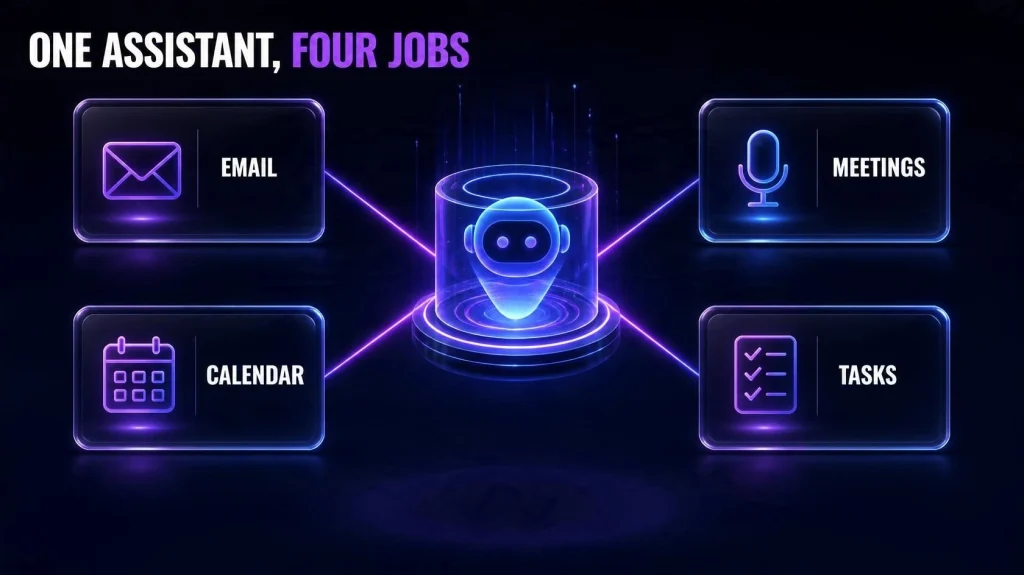
Kai is a separate product from Morgen. Morgen is the planner for your calendars and tasks. Kai is an assistant that works across meetings, email, calendar and tasks at once. You don’t need a Morgen account to use it. Don’t confuse it with other companies called Kai, such as the cybersecurity firm of the same name.
Where it runs. Kai works in the browser, on Mac, and on iOS and Android. Native Windows and Linux apps are planned but have no release date, though the web app works on any system. See the official FAQ.
What it connects to. Kai integrates natively with Gmail, Outlook (mail and calendar), Google Calendar and Slack. It records meetings on Zoom, Google Meet, Microsoft Teams, Webex and Slack Huddles. Support for local files, CRMs and project tools is listed as coming, with no dates.
How the AI side works. The pages I reviewed don’t say which AI models run inside Kai. What they do describe is a connection going the other way: through MCP (Model Context Protocol), Claude, ChatGPT and Gemini can reach into Kai to read your calendar, email, tasks and meeting notes. I cover that below.
Core Features Explained
1. Smart Inbox Triage and Email Management
Kai reads every email as it arrives and sorts threads into Needs reply, FYI or Waiting for reply, while keeping the noise out. If you switch on label sync, you see the same labels inside Gmail or Outlook.
The part most people care about is drafting. Kai writes replies based on how you’ve written to that specific person before, so a note to your lawyer and a note to your co-founder don’t sound alike. Drafts wait for your Send. Kai also turns to-dos buried in a thread into tasks you accept in one tap, and brings back threads stuck waiting on someone else for a nudge.
If you’re nervous about handing an AI your inbox, read our guide on how to summarize email threads in Gmail without leaking data first. It lists the questions to ask before connecting any tool.
2. Meeting Notes and Summaries
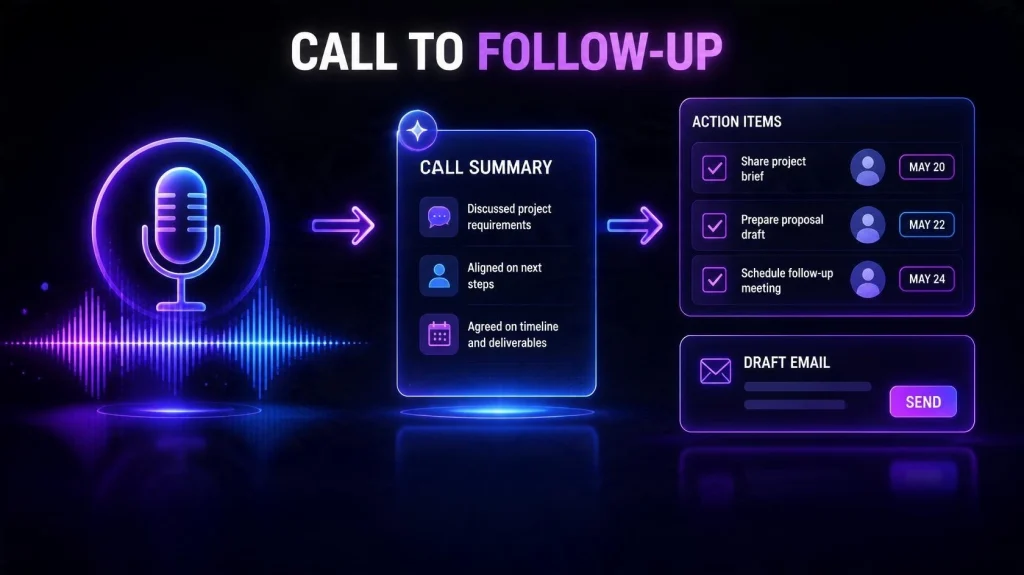
Kai captures calls from your own device, so no bot joins the meeting. On the Mac app it records both sides of the call. In the browser or on your phone, it records your microphone. When the call ends, you get a summary and action items with owners and due dates, split between what’s yours and what’s theirs. One click drafts a recap email to everyone on the call.
One caution: Kai’s FAQ says you are responsible for telling other participants that you’re using a botless recorder. Check recording laws and your company policy before you rely on it.
An independent reviewer at The Business Dive found Kai’s note-taking lighter than dedicated AI note-takers, and also said it saved them around 30 minutes a day on meeting notes. That’s one person’s experience, not a guarantee. If meeting notes are the whole job, a specialist tool may go deeper. If you want notes to turn into tasks and a calendar plan, see our guide on turning messy meeting notes into a follow-up plan with AI to see how that handoff works.
3. Daily Planning, Focus Blocks and Calendar Handling
Each day starts with a morning brief that reads across your schedule, tasks and email. The example on Kai’s page is the kind of line you’d want to see: you’re three days late replying to Sam, and your next meeting is in 30 minutes.
All your Google and Outlook calendars show on one timeline, with double-bookings flagged. You can drop a task onto the calendar as a time block, or ask Kai to schedule it. If you juggle work and personal calendars, or several client accounts, this is probably the feature you’ll use most. For a lighter routine you can run yourself, see how to build a weekly work plan from your emails, tasks and calendar using AI.
One limit: Kai only sees calendars it supports natively. Apple’s iCloud calendar, for example, isn’t supported yet, even though Morgen handles it.
4. Ask Kai, Workflows and Background Chasers
You can talk to Kai in plain words. Examples from its pages: “What did we decide on pricing?”, “Draft the reply to Sam,” “Find 45 minutes with Priya this week.” Kai answers or acts across email, meetings, calendar and tasks. It drafts and waits for your send, and it asks before deleting or cancelling anything. Quick actions have an instant undo.
Workflows are the background part. You describe a recurring job once, such as a brief every weekday morning or a Friday chase-up on open tasks, confirm the plan, and Kai runs it on schedule, even with the app closed. This is the one place Kai acts without checking in each time, so set it up deliberately.
5. Kai AI MCP Integration
This is where Kai gets interesting for people who already live in an AI chat. Kai’s MCP connector lets Claude, ChatGPT, Gemini, Claude Code, Cursor or VS Code read your calendar, email, tasks and meeting notes, and act when you ask. The connector itself is free with your Kai account. The details matter, though:
- Claude: Kai is in the connector directory. You open the listing, connect and approve.
- ChatGPT: works on free and paid plans, but you must switch on developer mode, which ChatGPT labels as elevated risk.
- Gemini: US only, on a personal Google account with AI Pro or Ultra.
- Perplexity: doesn’t work today, according to Kai’s own page.
Kai’s page also lists what the connector can’t do: it never sends anything on its own, never files or deletes your mail, and never moves an event you didn’t ask it to move. One gap worth knowing: there’s no revoke button inside Kai for the connector yet. You remove it in Claude or ChatGPT, and any token already issued expires within the hour.
If you’d rather build your own MCP tools than use a ready-made assistant, see our NitroStack review.
Who Is Kai AI Built For?
Kai has dedicated pages for several groups. Here is how the use cases play out:
- Founders and CxOs: Your problem is volume: too many threads and too many people waiting on you. Triage, drafts in your voice and a morning brief address that directly.
- Freelancers and consultants: You have several clients, several inboxes and often several calendars. One timeline and one task list that pull commitments out of client calls is the draw.
- Team leads: The 1:1 happens, and then the follow-ups depend on your memory. Having action items filed as tasks with owners and dates closes that gap.
- Neurodivergent professionals, including people with ADHD: Kai markets itself to this group. The logic is sound: a tool that surfaces what’s overdue, protects focus time and reduces the number of places you must check can lighten the load. Kai is not a medical or clinical tool, though, and it won’t replace support that works for you.
- AI power users: If you already work in Claude or ChatGPT, the MCP connector lets you ask about your day without leaving that chat.
Kai AI Pricing Breakdown
Kai’s pricing is simple on paper. Every plan, including the free trial, has every feature. The only difference is usage.
| Plan | Price | Best for |
|---|---|---|
| Free trial | $0 | Testing on your real week |
| Base | $20/user/mo | Part-time use |
| Pro | $50/user/mo | Daily use (5x Base usage) |
| Ultra | $100/user/mo | Heavy, all-day use (10x Base usage) |
Trial details: The free trial is a one-time allowance, with no credit card and no time limit. When it runs out, Kai stops taking on new work and asks you to pick a plan. Nothing is charged automatically, because no card is on file.
Usage and overages: Each plan has a monthly usage allowance. The pricing page says there’s no overage and no surprise line items, and that Kai tells you in the app when you’ve used most of it. It doesn’t publish the allowance numbers, so you’ll learn your own burn rate during the trial.
Teams: Pricing is per seat, with each seat having its own usage. Plans can be switched or cancelled any time.
Is Kai AI Worth It? The ROI Math
Here’s a simple way to answer it. Take what an hour of your time is worth and work out the break-even point:
- At $60 an hour, Pro at $50 pays for itself if it saves you about 50 minutes a month.
- At $60 an hour, Base at $20 breaks even at about 20 minutes a month.
Those numbers are low. The harder question is whether Kai really saves that time for you. The Business Dive reviewer reported saving about 90 minutes a day in total: roughly 40 minutes from email management, 30 from meeting notes, and about 10 each from the AI assistant and from calendar and tasks. That’s one reviewer, and your result depends on your inbox and meeting load.
Kai’s own pricing page argues that a human executive assistant costs around $6,000 a month and that the stack of single-purpose tools it replaces costs about $77 a month. Treat that as the vendor’s framing. Kai covers the digital half of an assistant’s job, not the human judgment or errands.
Kai AI vs Granola, Fyxer, Otter, Motion and Lindy
| Tool | Main job | Starting price |
|---|---|---|
| Kai | Email, meetings, calendar, tasks | Free trial, then $20 |
| Granola | Meeting notes | Free, paid from about $14 |
| Fyxer | Email assistant, notetaker | $30/mo, 7-day trial |
| Otter | Meeting transcription | Free plan, paid tiers |
| Motion | Auto-scheduling, tasks | $49/mo ($29 annual) |
| Lindy | Custom AI agents | Credits, check price |
Prices come from public listings in October 2026. They change often, so check each site before you buy.
Kai AI vs Granola
Granola’s plans include a free tier capped at 25 lifetime meetings and paid tiers that trackers list from around $14 to $18 per user, though sources disagree on plan names. Granola does one job, meeting notes, and does it well. Kai includes notes but adds email, calendar and tasks. If notes are your only pain, Granola is cheaper and more focused. If follow-ups, replies and scheduling cost you as much time as the meeting, Kai covers more ground.
Kai AI vs Fyxer
Fyxer is the closest rival on email. It charges $30 or $50 per user a month with a 7-day trial and no permanent free plan. Kai’s entry price is $20, its trial has no clock, and it adds planning and tasks. Fyxer’s strength is its mature email focus. Check how each handles your inbox during a trial.
Kai AI vs Otter, Motion and Lindy
Otter is mainly a transcription and meeting-notes tool. Motion is an auto-scheduler, and its individual plan is $49 a month or $29 on annual billing. Motion works best when it controls your whole task and calendar system, which is a bigger commitment than adding Kai alongside your current tools. Lindy is a builder for custom agents billed on credits, and its listed prices differ by source, so verify before you buy.
Where Kai stands out: no other tool in this list combines meeting notes, full email handling and calendar planning in one assistant with a shared memory of your work.
Real-World Pros and Cons
Pros
- One assistant across meetings, email, calendar and tasks
- Multi-account calendar view for Google and Outlook
- Replies drafted from how you write to each person
- Botless meeting capture on major platforms
- Drafts wait for your Send, and deletes ask first
- Free trial with every feature, no card and no time limit
- Kai MCP connects Claude, ChatGPT and others to your day
- Built by the Morgen team, with a large user base
Cons
- Young product, and one independent review noted occasional failed AI responses and some draft suggestions reappearing after being turned off
- Usage allowances aren’t published, so you won’t know your fit until you try it
- Native integrations are limited to Gmail, Outlook and Slack, with no iCloud calendar
- Native Windows and Linux apps aren’t available yet
- Gemini MCP is US-only and needs a paid Google plan; ChatGPT needs developer mode
- You carry responsibility for recording consent in meetings
- Pro at $50 is real money if you use it lightly
Privacy and Control: What to Check Before You Connect
Giving any assistant your inbox and calendar is a big step, so look at the controls first.
Kai’s FAQ says it only accesses the integrations you connect, and that it never uses your data to train models, whether its own, open-source or those of third-party processors. It says Kai always asks approval before sending information out for you or deleting anything. It also notes you can choose to let Kai send emails on its own, either only to you or to you and other contacts. Be careful with that setting.
Before connecting a work account, read Kai’s privacy policy and terms, confirm your employer allows it, and start with a low-risk account. Treat vendor statements as claims to verify. Those pages are the vendor’s own words.
Frequently Asked Questions
Which AI is best for an executive assistant in 2026?
It depends on the job. Granola suits meeting notes, Fyxer suits email, Motion suits auto-scheduling, and Kai aims to cover meetings, email, calendar and tasks together. Test your top two on your real week.
Is Kai AI safe for managing confidential corporate email accounts?
Kai says it doesn’t train models on your data, only accesses what you connect, and asks approval before sending or deleting. Whether that’s enough depends on your company’s policy and data rules. Read the privacy policy and get IT approval before connecting a work account.
How does Kai AI compare to Lindy AI and Granola AI?
Granola focuses on meeting notes, and Lindy is a builder for custom agents billed on credits. Kai is a ready-made assistant that covers your meetings, inbox, calendar and tasks without you building anything.
What happens when your Kai AI trial runs out?
Kai stops taking on new work and asks you to pick a plan. Nothing is charged automatically, because no credit card is on file until you add one.
Is Kai AI free?
There is a free trial with a one-time usage allowance, no card and no time limit. After that you pay $20, $50 or $100 per user per month.
Is Kai AI The Same As Morgen?
No. Kai is a separate product from the team behind Morgen. Morgen is a planner for your calendars and tasks, while Kai is an assistant that works across your meetings, email, calendar and tasks. You don’t need a Morgen account to use Kai.
Does Kai AI Work On Windows?
There’s no native Windows app yet, and no release date has been given. The web app works in the browser on any system.
Kai AI Review Final Verdict: Should You Buy It?
After going through Kai’s features, pricing and independent feedback, this Kai AI review lands on a clear recommendation: try it, but test it on your real week before paying.
Solopreneurs, founders and consultants: start the free trial and watch what it does with your inbox and meetings. If it saves you even an hour a month, Base pays for itself. Move to Pro only if you hit the usage limit and Kai is clearly running more of your week.
Teams: pricing is per seat, so pilot it with two or three people first. Check privacy and recording consent before rolling it out.
Skip it if your inbox is light, you hold few meetings, or you only need meeting notes. A single-purpose tool will cost less.
Looking for more practical AI productivity and privacy guides? Visit ByteVibeAI for beginner-friendly guides, honest tool reviews and step-by-step tutorials that help you work smarter, save time and keep your data safe.