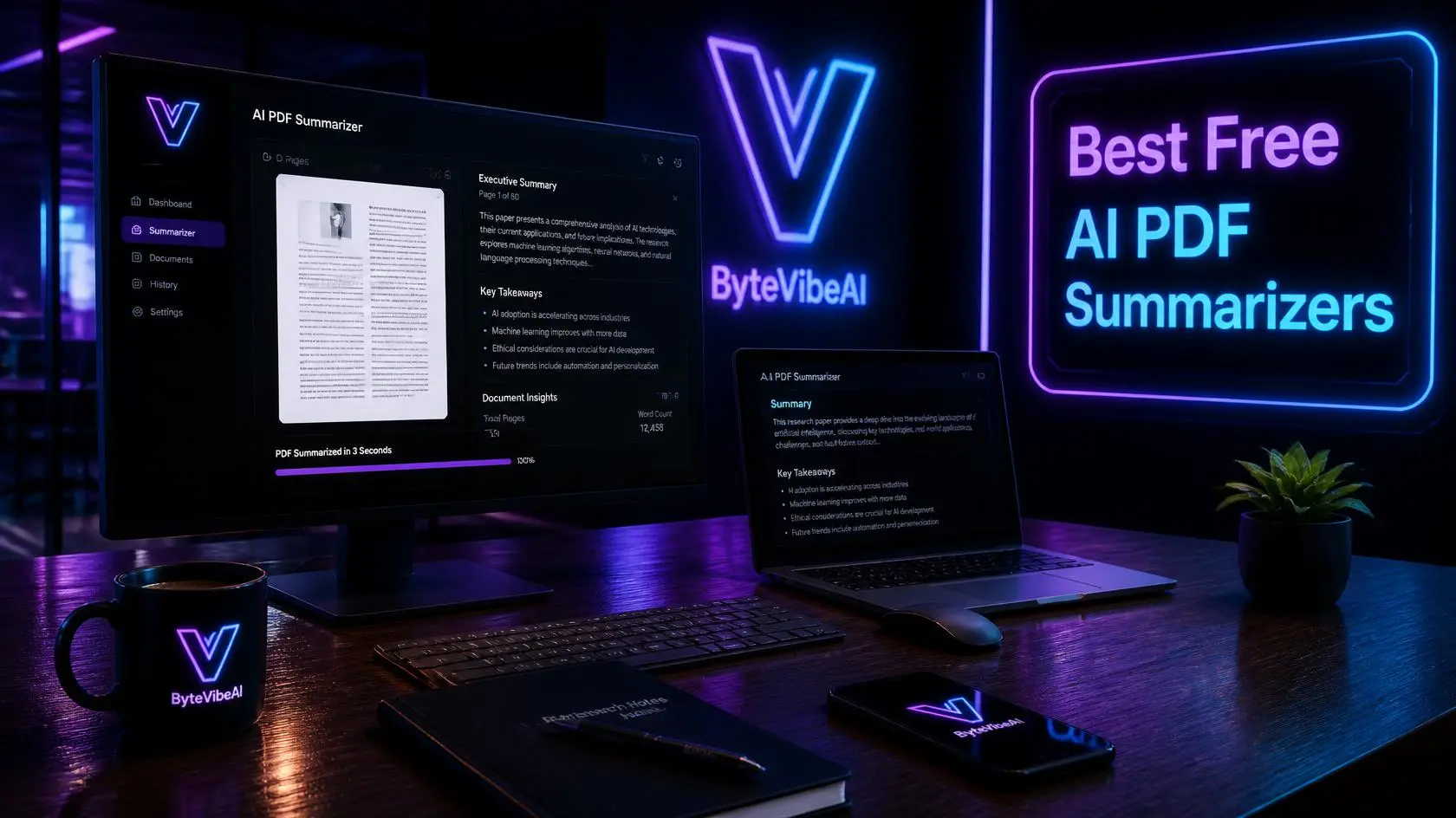
Best Free AI PDF Summarizers to Read 50-Page Documents in Seconds (2026)
Reading a 50-page PDF can take an hour or more. If you’re a student, a researcher, or someone who deals with long reports and contracts, a free AI PDF summarizer can give you the key points in seconds, so you know what’s worth reading in full.
This guide covers the best free AI PDF summarizers, what each free plan gives you, and where they fall short. Free plans change often, so check the limits before you rely on one.
I haven’t run the same 50-page file through every tool. The limits here come from each tool’s own pricing and help pages and recent reviews.
One more thing: don’t upload confidential contracts or financial documents unless the tool’s privacy policy explains how your files are stored.
Why Manual Document Reading Is Wasteful
The average adult reads at a speed of 200 to 250 words per minute. A standard 50-page PDF report contains roughly A standard 50-page PDF report contains roughly 20,000 words, which takes about 80 to 100 minutes to read without a break. When you factor in note-taking, cross-referencing figures, and drafting executive summaries, a single document can devour an entire afternoon.
Traditional manual document reviewing presents several core challenges:
- Information Overload: Continuous reading of dense technical or legal prose causes rapid cognitive fatigue and decreases retention.
- Scattered Information: Finding a single financial metric or legal condition across multiple chapters requires excessive search effort.
- Delayed Response Times: Waiting days to digest complex user manuals delays client project delivery and internal decisions.
- Inconsistent Notes: Human summaries often suffer from personal bias or accidental oversight of critical sub-clauses.
A free AI PDF summarizer removes most of these problems by pulling out the key points in seconds.
Best Free AI PDF Summarizers Compared (2026)
| Tool | Free plan | Key free limits | Best for |
|---|---|---|---|
| ChatPDF | Yes, no account needed | 2 PDFs a day, up to 120 pages and 10 MB each, daily question limit | Quick questions |
| Claude | Yes | Large uploads (up to 500 MB, 20 files per chat, PDFs up to 1,000 pages), but usage limits apply | Long, dense reports |
| Gemini Notebook (formerly NotebookLM) | Yes, with a Google account | 50 sources per notebook, about 50 chat questions a day, 500,000 words or 200 MB per source | Several documents at once |
| AskYourPDF | Yes | 100 pages and 15 MB per document, about 1 document and 50 questions a day | PDFs you find online |
| SciSpace | Yes | Capped daily chats and citation credits | Research papers |
Free plan limits change often. Last checked on October 25, 2026.
Core Benefits of Using AI Document Summarizers
Adopting automated PDF analysis tools offers clear operational advantages across academic, commercial, and technical environments.
Key benefits include:
- Instant Turnaround: Transform multi-page reports into clear executive briefs in under ten seconds.
- Conversational Interaction: Ask direct follow-up questions to clarify vague statements or complex financial charts.
- Traceable Page References: Modern platforms provide direct clickable citations so you can verify facts on the original PDF page.
- Multi-Document Comparison: Analyze and contrast multiple uploaded files at the same time.
- Custom Output Formats: Automatically reformat text into study flashcards, bulleted action items, or formal executive memos.
For students, freelancers, and small teams, it works like a fast research assistant, as long as you check the important details
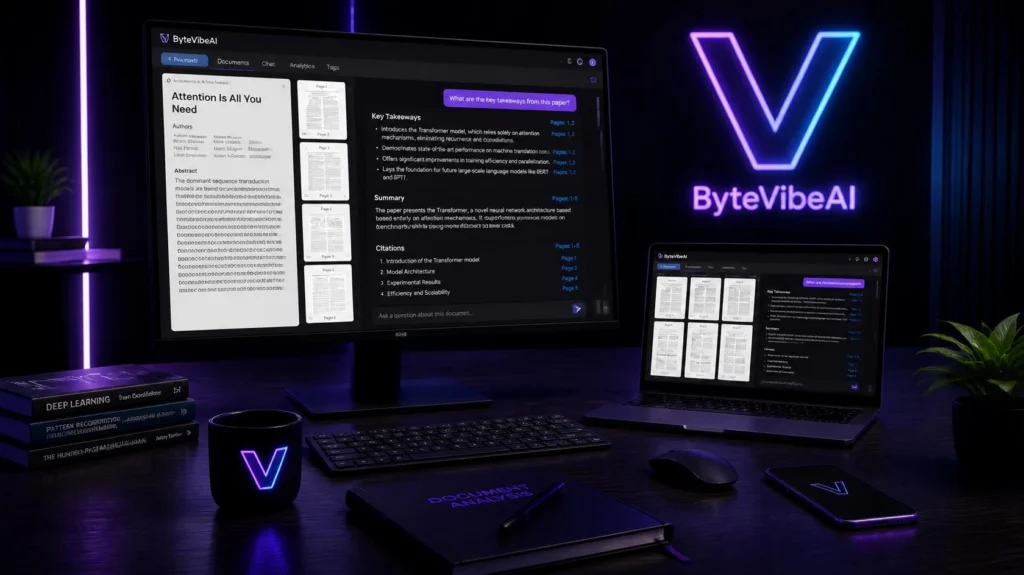
Quick Overview
Here’s what you’ll find below: se replace karein, aur pehle bullet ko Five free tools, with their free-plan limits kar dein.
We will cover:
- In-depth reviews of top-rated free PDF summarizing platforms
- Essential features every document summarizer must offer
- A practical 6-step workflow for accurate document processing
- Advanced prompting strategies for deep contextual answers
- Privacy guidelines for handling sensitive documents online
Top Platforms Offering a Free AI PDF Summarizer
Selecting the right platform depends on file size, privacy requirements, and whether you need multi-document synthesis. Here are the leading online tools currently available.
1. ChatPDF – The Gold Standard for Quick Conversational Summaries
ChatPDF is one of the simplest ways to ask questions about a long document. You drop a PDF into your browser, get a short summary, and chat with the file from there.
Key Features:
- No Registration Needed: Drag and drop your file into the web browser to begin analyzing text immediately.
- Automatic summary: Shows an overview as soon as the file is uploaded, with suggested follow-up questions.
- Page citations: Answers link back to the page they came from, so you can check them.
Free plan limits: About 2 PDFs a day, up to 120 pages and 10 MB each, with a daily question limit. A 50-page report fits comfortably.
Ideal Use Case:
Best for quick document reviews, student reading assignments, and rapid skimming of 50-page reports where speed is essential.
2. Claude.ai – Best Context Window for Extremely Long PDF Files
Claude can read long PDFs and answer follow-up questions about them. Chats accept files up to 500 MB, with up to 20 files per chat and PDFs up to 1,000 pages. It reads charts and images inside PDFs of 100 pages or fewer, and extracts only text from longer ones.
Key Features:
- Handles long reports: Works within the file limits above.
- Superior Logical Reasoning: Accurately grasps subtle themes, complex legal terms, and technical arguments.
- Good with dense text: Handles legal terms, technical arguments, and long chapters well.
- Structured output: Turns text into tables, briefs, or bullet points on request.
- High Natural Language Quality: Produces smooth, professional English prose without robotic formatting.
Free plan limits: You can upload files on the free plan, but usage limits apply, so long sessions may hit a message limit.
Ideal Use Case:
Perfect for researchers, technical writers, and business analysts who require deep contextual synthesis rather than surface summaries.
3. Google NotebookLM – Best for Multi-Document Research & Study Notes
Google renamed NotebookLM to Gemini Notebook in July 2026. It’s the same tool: you upload your own documents, and it answers using only those sources, with citations.
Key Features:
- Multi-File Processing: The free plan allows up to 50 sources per notebook.
- Source-based answers: Replies come from your uploaded files and include citations, which makes mistakes easier to spot. Still check anything important.
- Automatic Study Guide Creation: Converts source notes into briefing documents, timelines, study guides, and FAQ lists.
- Audio Discussion Summaries: Generates conversational audio overviews from uploaded notes for hands-free review.
Free plan limits: Free with a Google account. You get about 50 chat questions a day, 3 Audio Overviews a day, and up to 500,000 words or 200 MB per source.
Ideal Use Case:
Ideal for university students, policy researchers, and journalists managing extensive document libraries.
4. AskYourPDF – Best Browser Extension for Web-Based PDFs
AskYourPDF offers a versatile web workspace and Chrome extension that allows users to analyze PDF files directly from web pages.
Key Features:
- URL Link Processing: Paste any public web link to a PDF to generate a summary without downloading the file locally.
- Browser Extension Integration: Chat with PDF files directly within your active browser window while reading online publications.
- Organized Knowledge Base: Group uploaded files into custom project folders for easy access during ongoing work.
- Multi-Language Support: Translates and summarizes non-English documents into clear English.
Free plan limits: Up to 100 pages and 15 MB per document, around 1 document a day, and 50 questions a day. That’s enough to test it on one report, but not for regular use.
Ideal Use Case:
Great for online researchers, digital marketers, and legal assistants who frequently access PDF documents directly from search results.
5. SciSpace Copilot – Best for Academic Papers & Scientific Data
For specialized research containing complex mathematical formulas, scientific terminology, and data charts, SciSpace Copilot offers specialized accuracy.
Key Features:
- Formula & Chart Interpretation: Explains complex data charts, statistical tables, and mathematical formulas in accessible language.
- In-Line Text Explanation: Highlight confusing passages within the built-in PDF reader to receive instant simplified explanations.
- Literature Comparison Tables: Automatically extracts research methodologies, sample sizes, and primary conclusions into comparative tables.
- Citation Tracking: Identifies related academic literature to expand background research effortlessly.
Free plan limits: The free Basic plan has capped daily chats and citation credits. Heavy literature work can use them up quickly, and paid plans start around $12 a month.
Ideal Use Case:
Designed specifically for medical professionals, engineers, data scientists, and graduate students working with technical literature.
How to Use a Free AI PDF Summarizer for Maximum Accuracy
To get accurate summaries and avoid missing key details, follow this systematic six-step workflow when processing large PDF files.
Step 1: Prepare and Clean Your PDF File
Before uploading your document to any online tool, ensure the file is prepared for optimal processing:
- Verify Text Selectability: Try highlighting text inside the PDF. If you cannot select text, the file is a scanned image and requires Optical Character Recognition (OCR) first.
- Remove Unnecessary Pages: Delete blank cover sheets, index pages, and legal disclaimers to save processing memory.
- Check File Size Limits: Free limits vary. ChatPDF allows 10 MB and AskYourPDF 15 MB, while Claude and Gemini Notebook accept much larger files. A text-based 50-page PDF is usually well within these limits.
Step 2: Upload Your File to the Chosen Platform
Select a Free AI PDF Summarizer based on your specific requirements:
- Use ChatPDF or AskYourPDF for fast, casual Q&A sessions.
- Use Claude for dense, multi-chapter reports requiring deep reasoning.
- Choose Google NotebookLM if you need to analyze multiple related PDFs simultaneously.
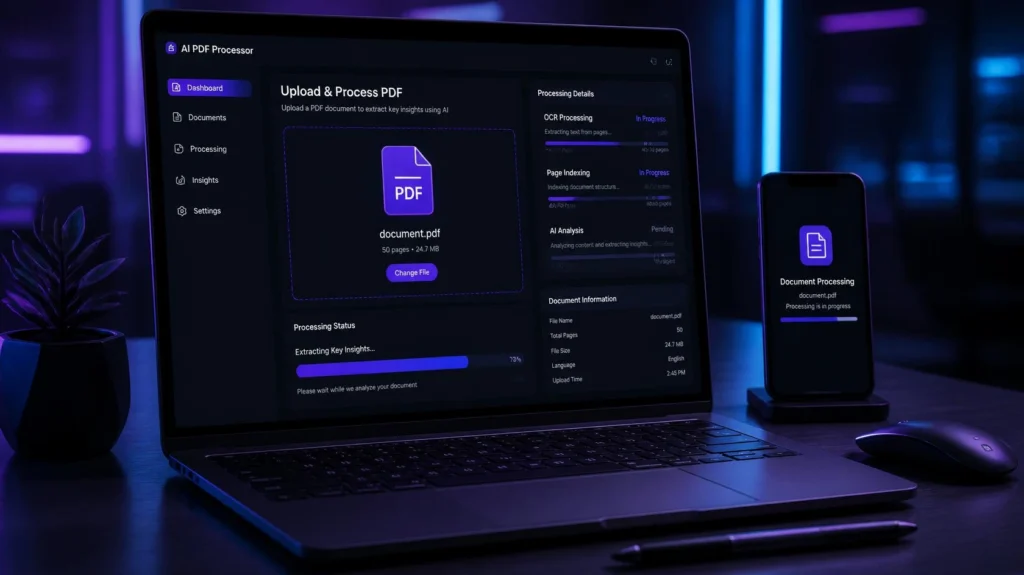
Once selected, upload your file into the secure workspace.
Step 3: Run an Initial High-Level Summary Prompt
Avoid asking narrow questions immediately. Start by requesting a structured overview of the entire document.
Use this initial prompt template:
“Act as an expert research analyst. Please analyze this uploaded PDF document and provide a structured executive summary. Divide your response into three sections: (1) Main Objective or Thesis, (2) Top 5 Key Takeaways with direct page citations, and (3) Primary Conclusions or Action Items. Keep the tone concise and professional.”
Step 4: Conduct Targeted Chapter-Level Queries
After reviewing the initial overview, drill down into specific chapters or data tables using focused follow-up prompts.
Effective section-level prompts include:
- “Summarize Chapter 2 in 200 words, focusing specifically on reported cost projections.”
- “What specific methodology did the research team apply in Section 4, and what limitations were identified?”
- “List every deadline, monetary figure, and contractual condition on pages 10 through 25 in a clean Markdown table.”
Step 5: Verify Source Citations for Precision
Even good AI summarizers can misread unclear wording.
Always verify important data points:
- Click provided page reference links in the generated output.
- Cross-check numbers, dates, and names directly against the original text.
- Ensure quotes taken out of context preserve their original intended meaning.
Step 6: Export and Organize Final Summaries
Convert your AI-generated summaries into permanent reference notes:
- Copy structured summaries into your note-taking app, project dashboard, or word processor.
- Save generated tables and study cards for quick review before meetings or exams.
- Use clean file naming conventions (e.g., Project_Summary_2026.docx) for future reference.
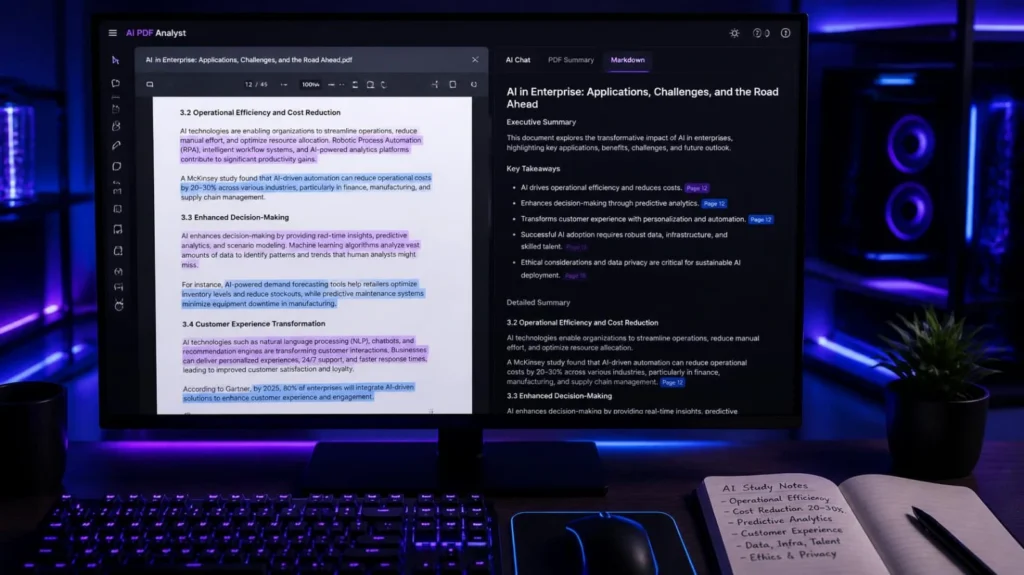
Key Features to Look For in PDF AI Tools
When choosing a long-term document tool, ensure the software includes these essential capabilities:
- Integrated Optical Character Recognition (OCR): Ability to process scanned documents cleanly without corrupting character formatting.
- Context Memory: Sufficient memory capacity to remember information from page 1 while processing page 50.
- Verifiable Citations: Clickable page references that eliminate guessing and speed up fact-checking.
- Flexible Export Options: One-click copying for Markdown text, structured PDF summaries, or Word documents.
- Data Privacy Commitments: Clear privacy terms guaranteeing that uploaded files are purged after processing and not used to train public AI models.
Free plans rarely cover all of these, so pick the tool that matches the features you need most.
Data Security & Privacy Best Practices
While online document summarizers offer incredible speed, handling confidential information requires basic security measures:
- Exclude Sensitive Personal Data: Remove Social Security numbers, banking details, personal health records, or sensitive credentials before uploading files to public web tools.
- Review Retention Policies: Choose platforms that process files securely and purge document caches after user sessions end.
- Use Offline Desktop Options for Private Files: For classified corporate or legal contracts, consider offline desktop AI tools that process files locally on your computer hardware without cloud transfers.
Frequently Asked Questions
1. How accurate is a Free AI PDF Summarizer for long documents?
They’re good at pulling out clear facts and main arguments, but they can still get numbers, dates, and legal wording wrong. Check anything important against the page citations.
2. Can free AI tools summarize scanned PDF files?
Yes, provided the tool features built-in Optical Character Recognition (OCR). If an AI tool cannot process a scanned document, run the PDF through a free online OCR tool before uploading it to the summarizer.
3. What are the typical page limits for free AI document tools?
It varies a lot. ChatPDF’s free plan allows PDFs up to 120 pages and 10 MB, and AskYourPDF’s allows 100 pages and 15 MB. Gemini Notebook and Claude accept much larger files but have their own daily usage limits. A 50-page text PDF fits within the file limits of most of these tools. Limits change often, so check each pricing page.
4. How does an AI PDF summarizer differ from traditional keyword search?
Keyword search (Ctrl + F) only finds exact words. An AI summarizer understands what you mean, so you can ask broad questions like “What are the main financial risks in this agreement?” even if the word “risk” never appears.
You May Also Like
- Top 7 Must-Have Free AI Chrome Extensions to Save 2 Hours Daily (2026)
- Top 5 Free AI Productivity Tools for Remote Workers to Automate Daily Tasks (2026)
- How to Use AI Note-Taking Apps to Organize Your Work and Study Life
- Best Free AI Email Generators to Write Professional Work Emails in Seconds (2026)
Visit ByteVibeAI to discover step-by-step guides designed to help students, freelancers, and small business owners streamline complex workflows, master artificial intelligence tools, and maximize daily output.