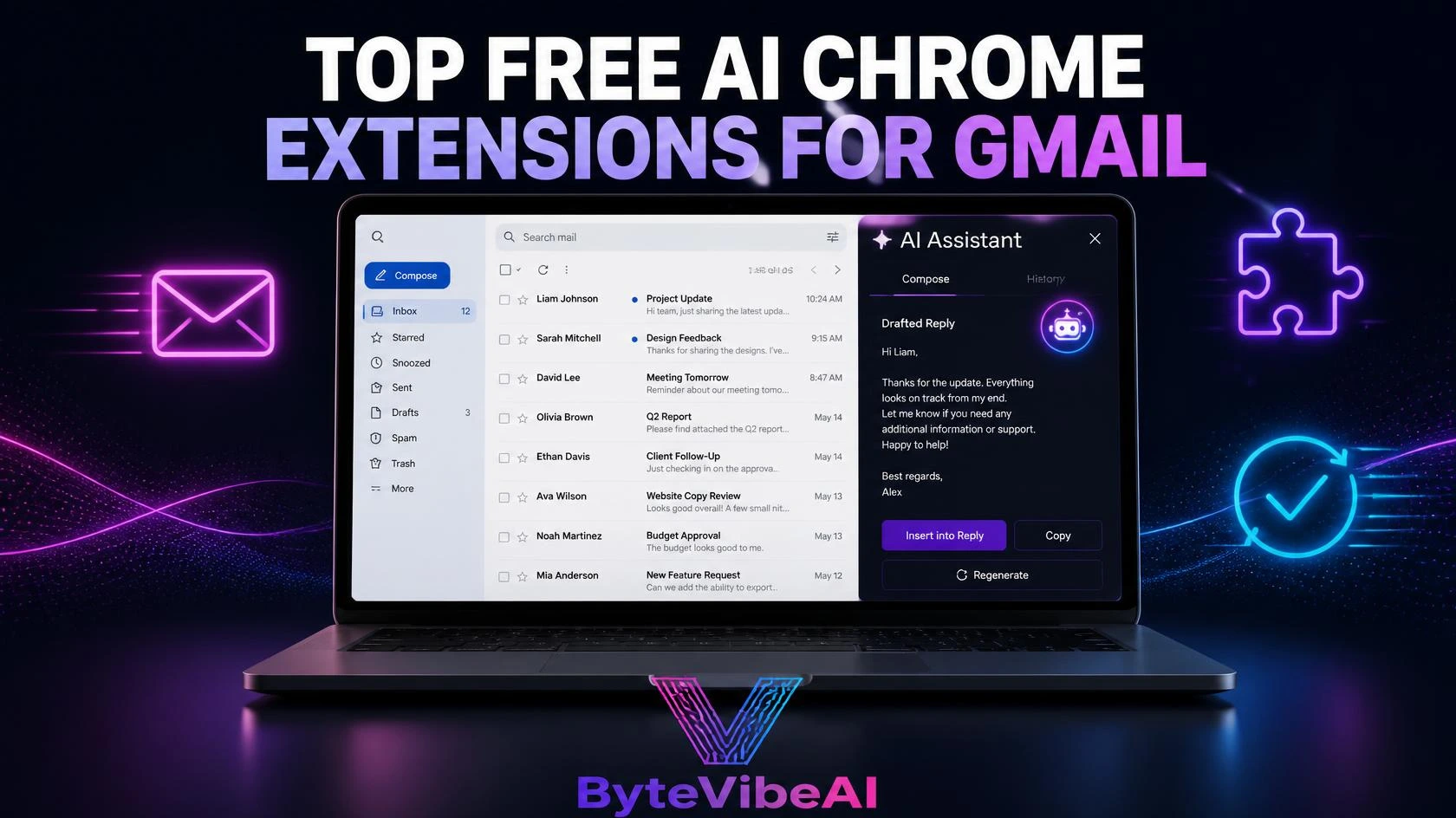
Top Free AI Chrome Extensions for Gmail Automation
A full inbox eats up more of the workday than most people realize. Drafting replies, following up on emails that went quiet, and keeping messages organized all add up fast.
AI Chrome extensions for Gmail handle a lot of that work automatically. Install one, and it starts drafting replies, tracking follow-ups, or sorting your inbox right inside the Gmail tab you already have open.
This guide covers five free extensions that actually automate Gmail tasks, not just add writing suggestions. Whether you’re a freelancer managing client emails, a small business owner handling support requests, or anyone drowning in a daily inbox, one of these will save real time.
Why AI Chrome Extensions for Gmail Are Worth Installing
Switching between Gmail and a separate AI tool breaks your flow every time. Extensions remove that friction by working directly inside the inbox.
These tools typically help you:
- Draft email replies automatically based on the message you received.
- Send automatic follow-ups when a thread goes unanswered.
- Sort and label incoming emails without manual filtering.
- Save time on repetitive email tasks every single day.
None of this replaces reading your own emails carefully. But it removes the repetitive parts that eat up time without adding much value.
Quick Overview of the 5 Tools
✍️ Compose AI
Best For: Auto-drafting replies as you type.
Free Plan: ✅ Available
🤖 eesel AI
Best For: Auto-replying using your own knowledge base.
Free Plan: ✅ Available
📧 Mailmeteor
Best For: Personalized mass emails with auto follow-ups.
Free Plan: ✅ Available
⏰ Boomerang for Gmail
Best For: Scheduled sends and follow-up reminders.
Free Plan: ✅ Available
🔁 Right Inbox
Best For: Recurring emails and automated sequences.
Free Plan: ✅ Available

How We Selected These Tools
Plenty of Gmail extensions offer basic writing suggestions but stop short of actual automation, so we filtered for tools that handle real, repetitive tasks on their own.
The tools below were chosen based on:
- Genuine automation, not just writing suggestions
- A free plan that covers real daily use, not just a short trial
- Direct integration inside the Gmail interface
- Ease of setup for people with no technical background
- Reliability for regular, everyday email volume
We skipped extensions where the free tier only offered a preview of automation features locked behind a paid plan.
1. Compose AI
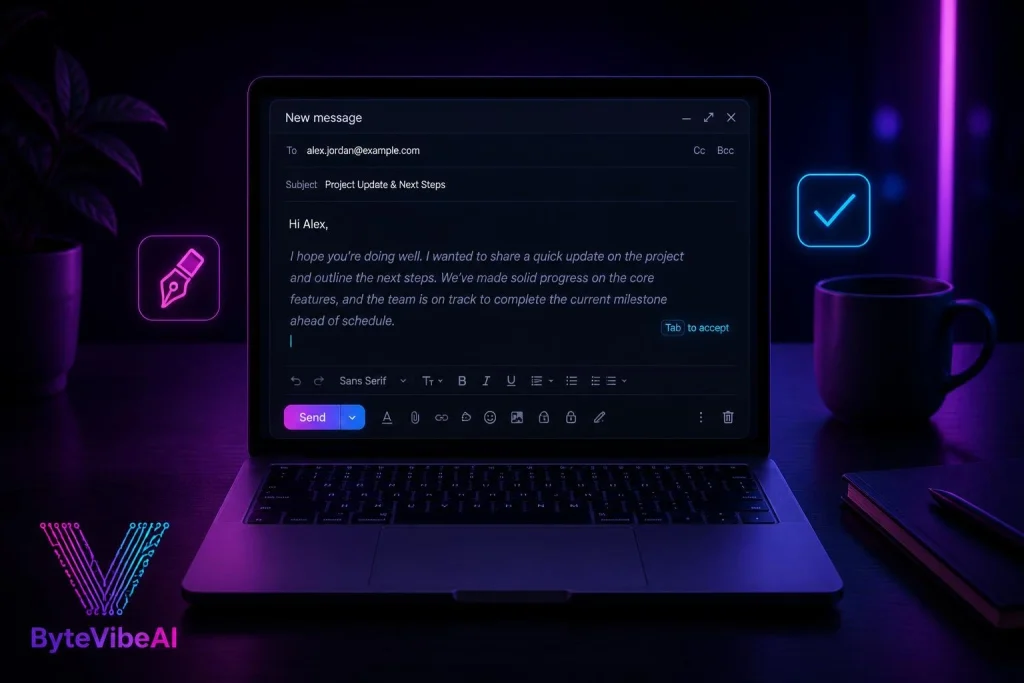
Compose AI drops directly into the Gmail compose window and starts suggesting full sentences and replies as you type, based on the context of the email.
I tested it on a batch of routine client follow-ups, and it cut the actual typing time for each one down by more than half.
Key Features
- Real-time autocomplete suggestions while typing
- Full email drafts generated from a short prompt
- Tone adjustment for formal or casual replies
- Works directly inside Gmail’s compose window
Pros
- Genuinely speeds up routine email writing
- Simple setup with no learning curve
- Free plan covers regular daily use well
Cons
- Less useful for complex, highly technical emails
- Suggestions occasionally need manual editing for tone
Best For
Freelancers and professionals who write similar types of emails often and want to type less.
2. eesel AI
eesel AI takes automation further than most Gmail extensions by pulling answers from your own documents and knowledge base to draft accurate, specific replies.
It’s especially useful for anyone handling repetitive support or customer questions where the same information gets requested over and over.
Key Features
- Drafts replies using your own uploaded documents
- Learns from past email threads over time
- Works well for support and customer-facing inboxes
- Integrates with existing helpdesk knowledge bases
- Simple Chrome extension setup
Pros
- Replies are genuinely specific, not generic templates
- Saves significant time on repetitive support questions
- Improves accuracy the more it’s used
Cons
- Initial setup takes more time than simpler extensions
- Best suited for support-heavy inboxes rather than general email
Best For
Small business owners and support teams handling repetitive customer questions by email.
3. Mailmeteor
Mailmeteor combines mail merge, tracking, and automatic follow-ups into one extension, making it useful for anyone sending personalized emails to more than one person at a time.
Write the sequence once, and it handles sending follow-ups automatically until someone replies.
Key Features
- Personalized mass emails pulled from Google Sheets
- Automatic follow-ups for unopened or unanswered emails
- Email open and click tracking
- AI writer for drafting and refining email copy
- Free tier covers up to 50 emails per day
Pros
- Automatic follow-ups stop the moment someone replies
- Free plan is genuinely usable for regular outreach
- Combines several email tasks in one extension
Cons
- Daily send limit on the free plan
- Less relevant if you only send one-to-one emails
Best For
Freelancers and small businesses sending personalized emails to multiple people regularly.

4. Boomerang for Gmail
Boomerang focuses on timing, letting you schedule emails to send later and automatically reminding you when a thread needs a follow-up.
Its AI tone-checking feature also flags emails that might come across differently than intended before you hit send.
Key Features
- Scheduled email sending
- Automatic follow-up reminders for unanswered threads
- AI Respondable tone and response-likelihood check
- Inbox pause to reduce distractions
- Read receipts on sent emails
Pros
- Reliable scheduling and reminder system
- Tone-checking catches awkward phrasing before sending
- Well established with a long track record
Cons
- Free plan limits the number of scheduled messages per month
- Less focused on drafting than Compose AI or eesel AI
Best For
Anyone who needs better control over email timing and follow-up without missing threads.
5. Right Inbox
Right Inbox specializes in recurring emails and sequences, useful for anyone sending the same type of message on a regular schedule.
Set up a sequence once, and it keeps running automatically without needing to be rebuilt each time.
Key Features
- Recurring email scheduling
- Email sequences with automatic follow-ups
- Templates for frequently sent messages
- Read receipts and click tracking
- Simple sidebar interface inside Gmail
Pros
- Recurring emails save real time on repeated tasks
- Templates speed up common, repetitive messages
- Straightforward setup for beginners
Cons
- Free plan caps the number of active templates
- Less suited for one-off, highly personalized emails
Best For
Anyone who sends the same type of email on a regular, repeating basis.
Expert Tips for Better Gmail Automation
A few habits made a real difference once I started using these tools regularly.
- Start with one extension instead of installing several at once, since overlapping features can get confusing.
- Review AI-drafted replies before sending, especially for anything client-facing.
- Set up automatic follow-ups only for threads that genuinely need a reminder.
- Revisit your templates and sequences every few months to keep them relevant.
Common Mistakes to Avoid
Even the best AI Chrome extensions for Gmail can’t fix a messy inbox strategy. These habits tend to cause the most problems.
1. Sending AI Drafts Without Reading Them First
An AI-drafted reply can miss context the tool doesn’t have. Always read before sending, especially for important threads.
2. Installing Too Many Overlapping Extensions
Running several automation extensions at once can cause conflicts inside Gmail.
Try sticking to:
- One extension for drafting and replies
- One extension for scheduling and follow-ups
- Removing extensions you stop actively using
3. Ignoring Free Plan Limits
Hitting a daily send or draft limit mid-task disrupts your workflow. Check the limits before relying on a tool for something time-sensitive.
4. Setting Up Automation and Forgetting About It
Old templates and sequences can go stale. Review and update them periodically instead of leaving them untouched.
Frequently Asked Questions
Which free AI Chrome extension is best for Gmail automation?
Compose AI is the strongest starting point for drafting replies faster, while eesel AI works better for support-heavy inboxes with repetitive questions.
Are these extensions safe to use with a business Gmail account?
Most reputable extensions are safe, though it’s worth checking each one’s data privacy policy before connecting a business account with sensitive information.
Do I need any technical skill to set these up?
No. All five extensions install directly from the Chrome Web Store and work inside Gmail without any coding or technical setup.
Final Thoughts
AI Chrome extensions for Gmail have turned inbox management from a constant time drain into something that runs largely on its own. Drafting, following up, and organizing no longer need to happen manually for every single email.
Start with one extension that solves your biggest daily frustration, whether that’s drafting replies faster with Compose AI or automating follow-ups with Mailmeteor. Add a second tool only once the first one has become part of your regular workflow.
A full inbox isn’t going away, but with the right extension running in the background, it stops being something you have to fight every day.
You May Also Like
- How Small Businesses & Contractors Can Use AI for Instant Client Quotes (2026)
- Top 7 Must-Have Free AI Chrome Extensions to Save 2 Hours Daily (2026)
- The Best Free AI Research Assistants for Students and Professionals (2026)
- Best Free AI Email Generators to Write Professional Work Emails in Seconds (2026)
Call To Action
Explore more AI Productivity guides on ByteVibeAI to discover beginner-friendly tutorials, free AI tools, and practical tips for working smarter.