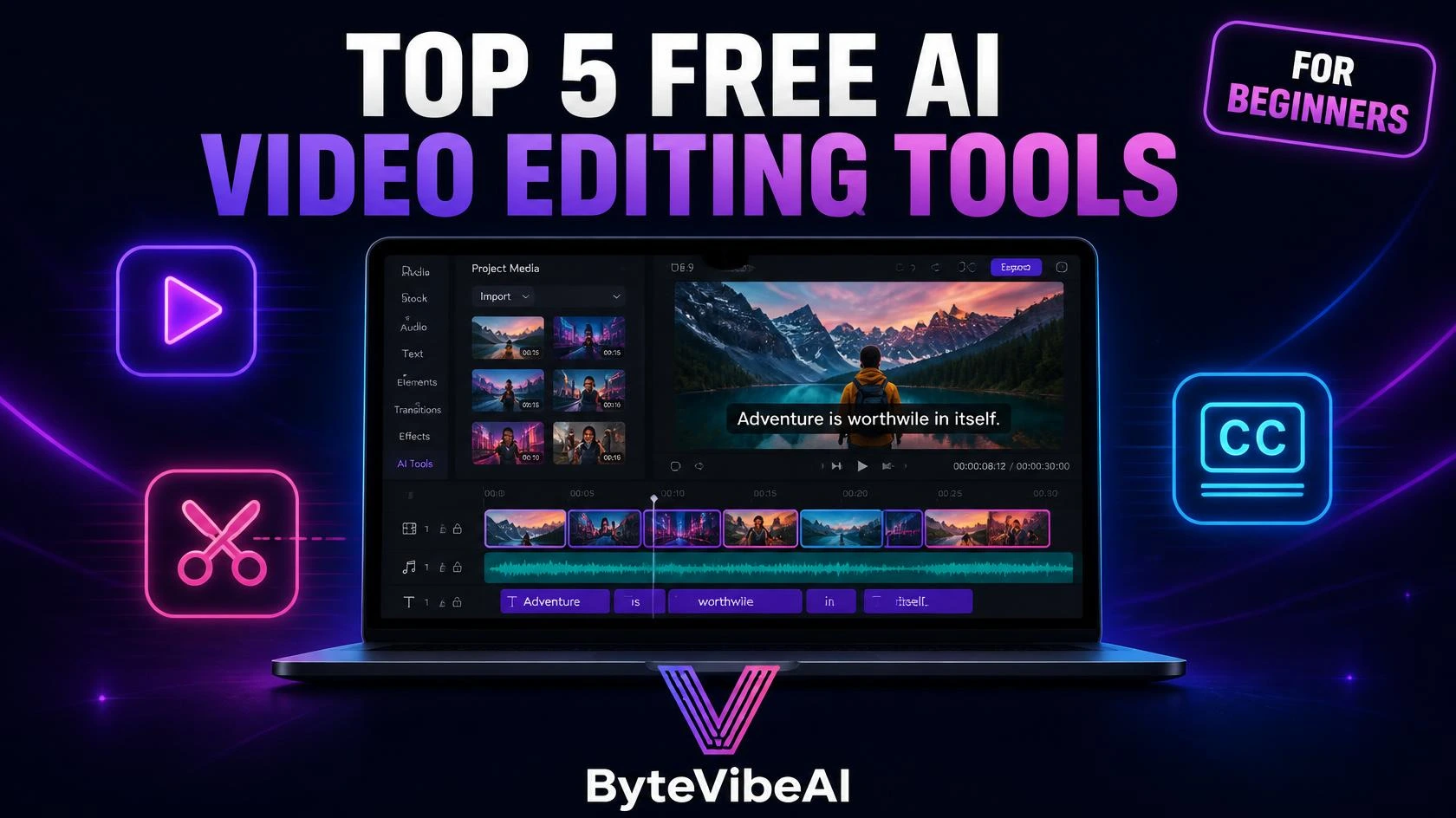
Top 5 Free AI Video Editing Tools for Beginners and Content Creators
Video used to be the hardest content format to start with. Learning a timeline, cutting clips frame by frame, and adding captions by hand could turn a five-minute video into a five-hour project.
Free AI video editing tools have flipped that experience. Auto-captions, smart cuts, and one-click resizing now handle the repetitive work, leaving you free to focus on the actual message.
This guide covers five free AI Video Editing tools that work well whether you’re just starting your first YouTube channel, managing a brand’s social accounts, or running a small business with limited time to spare. We’ll walk through what each one does best, where it comes up short, and who it fits.
Why Free AI Video Editing Tools Are Worth Using
A blank timeline used to be intimidating even for a short clip. AI-assisted editors remove most of that friction before you even open the app.
These free AI video editing tools typically help you:
- Add accurate captions automatically instead of typing them by hand.
- Remove filler words and awkward pauses with one click.
- Resize a single video for YouTube, TikTok, and Instagram at once.
- Skip a steep learning curve most traditional editors require.
None of this replaces good storytelling or a clear message. However, using free AI video editing tools removes the technical bottleneck that used to keep people from publishing at all.
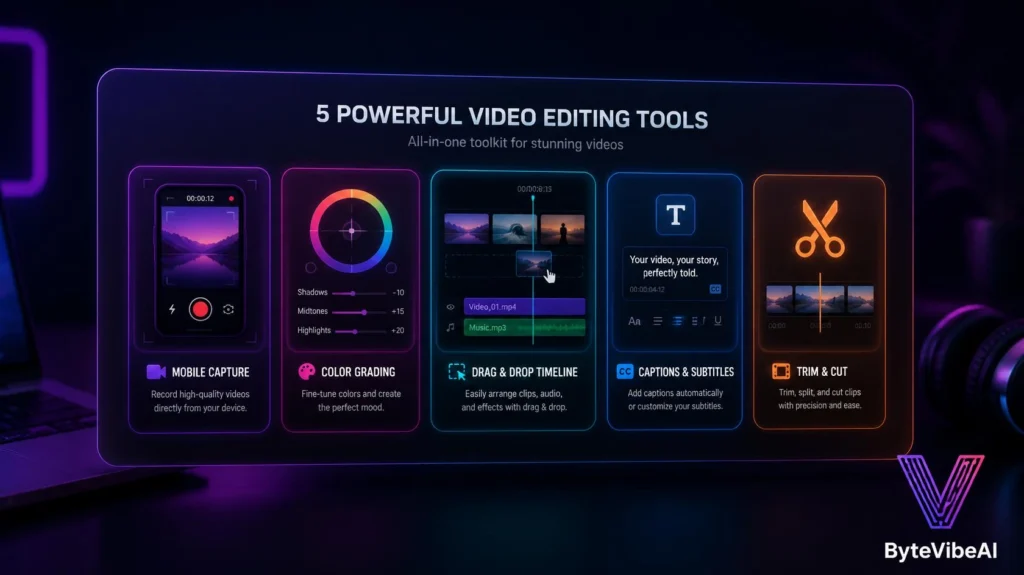
quick comparison of the top free AI video editing tools
📱 CapCut
- Best For: Fast, mobile-first editing for social content.
- Free Plan: ✅ Available
🎬 DaVinci Resolve
- Best For: Professional-grade editing with zero cost.
- Free Plan: ✅ Available
🖥️ Clipchamp
- Best For: Simple, template-based editing for beginners.
- Free Plan: ✅ Available
🌐 VEED
- Best For: Browser-based editing with strong captions.
- Free Plan: ✅ Available
✂️ Opus Clip
- Best For: Turning long videos into short clips fast.
- Free Plan: ✅ Available
How We Selected These Tools
New AI video editors launch constantly, and not all of them are honest about what’s actually free.
The tools below made the list based on:
- A free plan that produces watermark-free or lightly limited exports
- Genuine AI features, not just basic cutting and trimming
- Ease of use for people with zero editing background
- Support for vertical, short-form video formats
- Consistent reliability across regular use
We skipped tools that buried real features behind a paywall or offered only a short trial period.
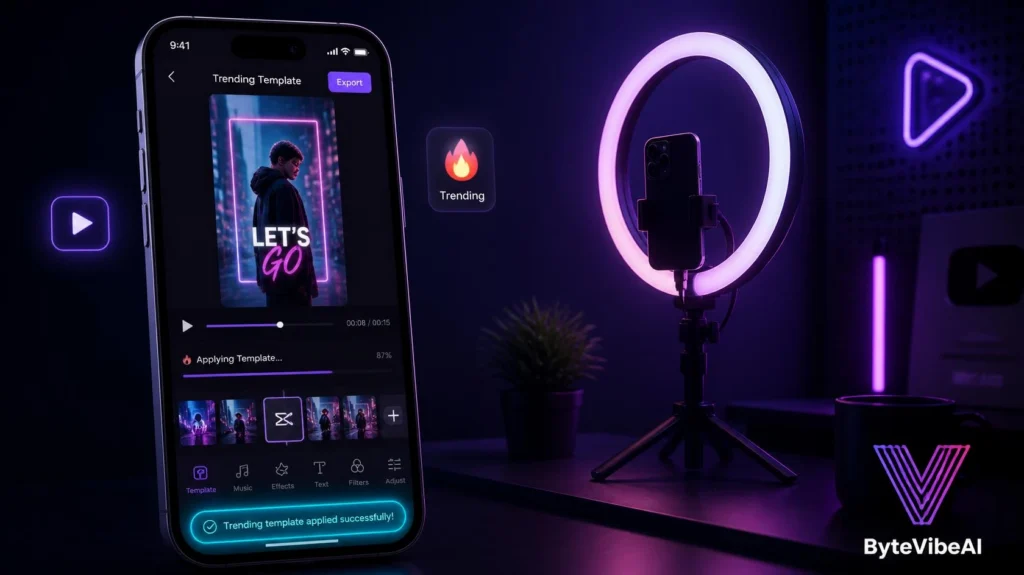
1. CapCut
CapCut built its reputation on mobile-first editing, and it remains one of the fastest ways to turn raw footage into a finished short-form video.
I’ve used it to edit a full Reel on my phone during a commute, and the templates alone save most of the guesswork for anyone new to editing.
Key Features
- Auto-captions with accurate speech recognition
- One-tap background removal
- Massive library of trending templates
- Native vertical video support for TikTok and Reels
- Desktop and mobile versions with synced projects
Pros & Cons
- Pros: Extremely beginner-friendly interface, Fast export times even on mobile, Templates make trend-following simple.
- Cons: Heavy template use can make content look similar, Some advanced effects sit behind a paid tier.
Best For: Beginners and social media creators who need fast, mobile-friendly short-form video edits.
2. DaVinci Resolve
DaVinci Resolve is the surprise entry on most free tool lists because it’s genuinely used in professional film and TV production, yet its free version costs nothing.
The learning curve is steeper than the other tools here, but the ceiling on what you can achieve is much higher.
Key Features
- Professional color grading tools
- AI-powered scene cut detection
- Multi-track timeline for complex edits
- Free version with no watermark
Pros & Cons
- Pros: Studio-grade editing power at zero cost, No watermark on exports, Skills transfer directly to professional editing work.
- Cons: Interface takes longer to learn, Requires a reasonably powerful computer to run smoothly.
Best For: Creators and small businesses ready to invest a little time for long-term, professional-quality results.
3. Clipchamp
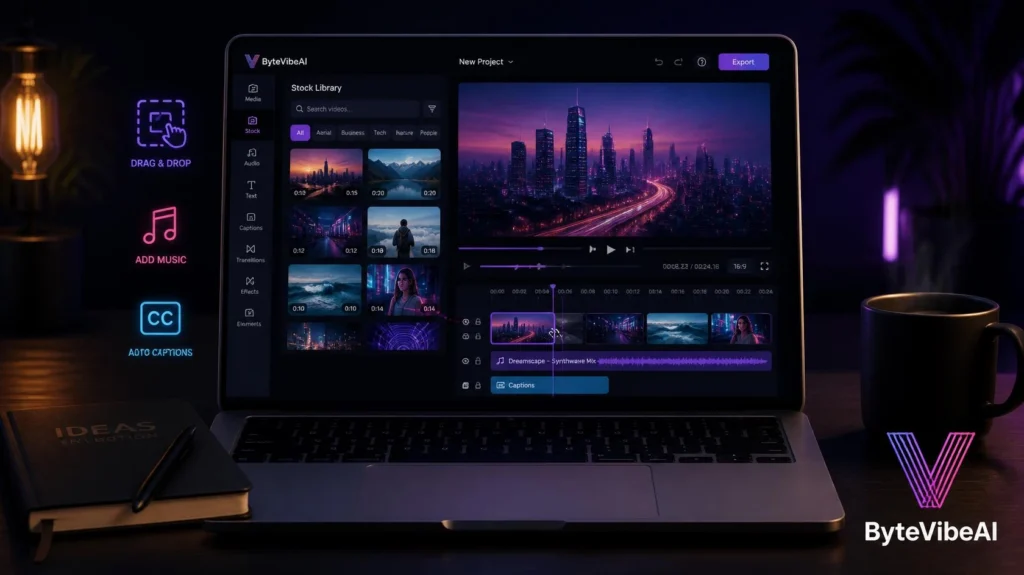
Clipchamp comes from Microsoft and leans into simplicity, with a drag-and-drop timeline that feels approachable from the first launch.
It pairs well with free stock footage and music, so a full video can come together without hunting for outside assets.
Key Features
- Drag-and-drop editing timeline
- Free stock footage and royalty-free music library
- AI-generated auto-captions
- Preset export sizes for social platforms
- Built-in screen and webcam recording
Pros & Cons
- Pros: One of the easiest interfaces for complete beginners, Free stock library removes a common cost barrier, Works directly in the browser with no install needed.
- Cons: Fewer advanced AI features than dedicated short-form tools, Free plan has export resolution limits.
Best For: Small business owners and beginners recording their first YouTube videos or product demos.
4. VEED
VEED runs entirely in the browser, which makes it useful for anyone who doesn’t want to install desktop software or is switching between devices often.
Its caption accuracy and translation tools stand out compared to most browser-based competitors.
Key Features
- Highly accurate auto-captions and subtitles
- Multi-language translation and dubbing
- Simple trimming and clip editing
- Cloud storage for ongoing projects
- Team collaboration features
Pros & Cons
- Pros: No software installation required, Strong captioning accuracy across accents, Useful for reaching multilingual audiences.
- Cons: Editing one video at a time slows down high-volume workflows, Free plan includes a watermark on exports.
Best For: Content creators and marketers who need reliable captions and light editing without installing anything.
5. Opus Clip
Opus Clip solves a specific problem: turning one long video, like a podcast or webinar, into several short clips ready for social media.
It analyzes the footage and suggests the most engaging moments automatically, cutting down the time spent scrubbing through long recordings.
Key Features
- AI-powered highlight detection in long videos
- Automatic vertical reformatting for shorts
- Auto-captions added to every generated clip
- Virality scoring for suggested clips
- One-click export to multiple platforms
Pros & Cons
- Pros: Saves significant time repurposing long-form content, Removes the guesswork of finding the best moments, Great for podcasters and webinar hosts.
- Cons: Processes one video at a time with no batch mode, Free plan limits the number of clips generated per month.
Best For: YouTubers and podcasters who want to repurpose long content into short clips without editing each one manually.
Expert Tips for Better AI Video Editing
A few habits made a real difference once I started editing with these tools regularly:
- Start with a rough cut before applying AI captions, so the timing stays accurate.
- Always review AI-generated captions for errors before publishing.
- Keep a consistent intro and outro style across videos for brand recognition.
- Export a test clip first to check quality before committing to a full video.
Common Mistakes to Avoid
Even the best free AI video editing tools can’t fix a rushed workflow. Watch out for these common issues:
1. Skipping the Caption Review
AI captions are accurate most of the time, but not always. Always proofread before publishing.
2. Ignoring Platform-Specific Formats
video built for YouTube rarely works well on TikTok without resizing. If you make short-form content, check our guide on free AI video generators for TikTok & Reels to speed up your workflow. Otherwise, try sticking to:
- Vertical format for TikTok, Reels, and Shorts
- Horizontal format for YouTube and websites
- Square format for Instagram feed posts
3. Overusing Trending Effects
Heavy use of trending transitions can date your content quickly. Use them with intention, not on every clip.
4. Forgetting Audio Quality
A visually polished video with poor audio still loses viewers. Clean up background noise before your final export.
Frequently Asked Questions
Which free AI video editing tool is best for beginners?
CapCut and Clipchamp are both excellent starting points, with CapCut better for mobile and short-form content, and Clipchamp better for browser-based editing.
Do free AI video editing tools add a watermark?
It depends on the tool. DaVinci Resolve and CapCut typically export without a watermark, while VEED and Opus Clip include one on their free plans.
Can I edit free AI video editing tools without any prior experience?
Yes. Tools like CapCut and Clipchamp are specifically designed for people with zero editing background.
Are AI-generated captions accurate enough to publish directly?
Mostly, but always review them first. Accents, background noise, and unusual names can cause small errors.
Final Thoughts
Free AI video editing tools have removed the biggest barrier that used to keep people from publishing video content: the technical learning curve. Auto-captions, smart cuts, and instant resizing now happen in minutes instead of hours.
Start with free AI video editing tools that matches your current skill level, whether that’s CapCut for quick mobile edits or DaVinci Resolve for something more advanced. Build a simple, repeatable workflow before adding more tools to the mix.
Video content isn’t slowing down anytime soon, and these tools make it realistic to keep up without burning out. Pick one, start editing, and let the results speak for themselves.
You May Also Like
- 👉 5 Best Free AI Image Generators For Stunning Blog Visuals (No Copyright)
- 👉 How To Create Professional Presentation Slides Using AI In Five Minutes
- 👉 How to Create Animated AI Avatars for Reels (Easy 2026 Guide)
- 👉 How to Turn Text into Video: The Best Free AI Tools for Video Creation
Ready to start editing smarter? Explore more AI Design guides on ByteVibeAI to discover beginner-friendly tutorials, free AI tools, and practical tips for creating standout content.