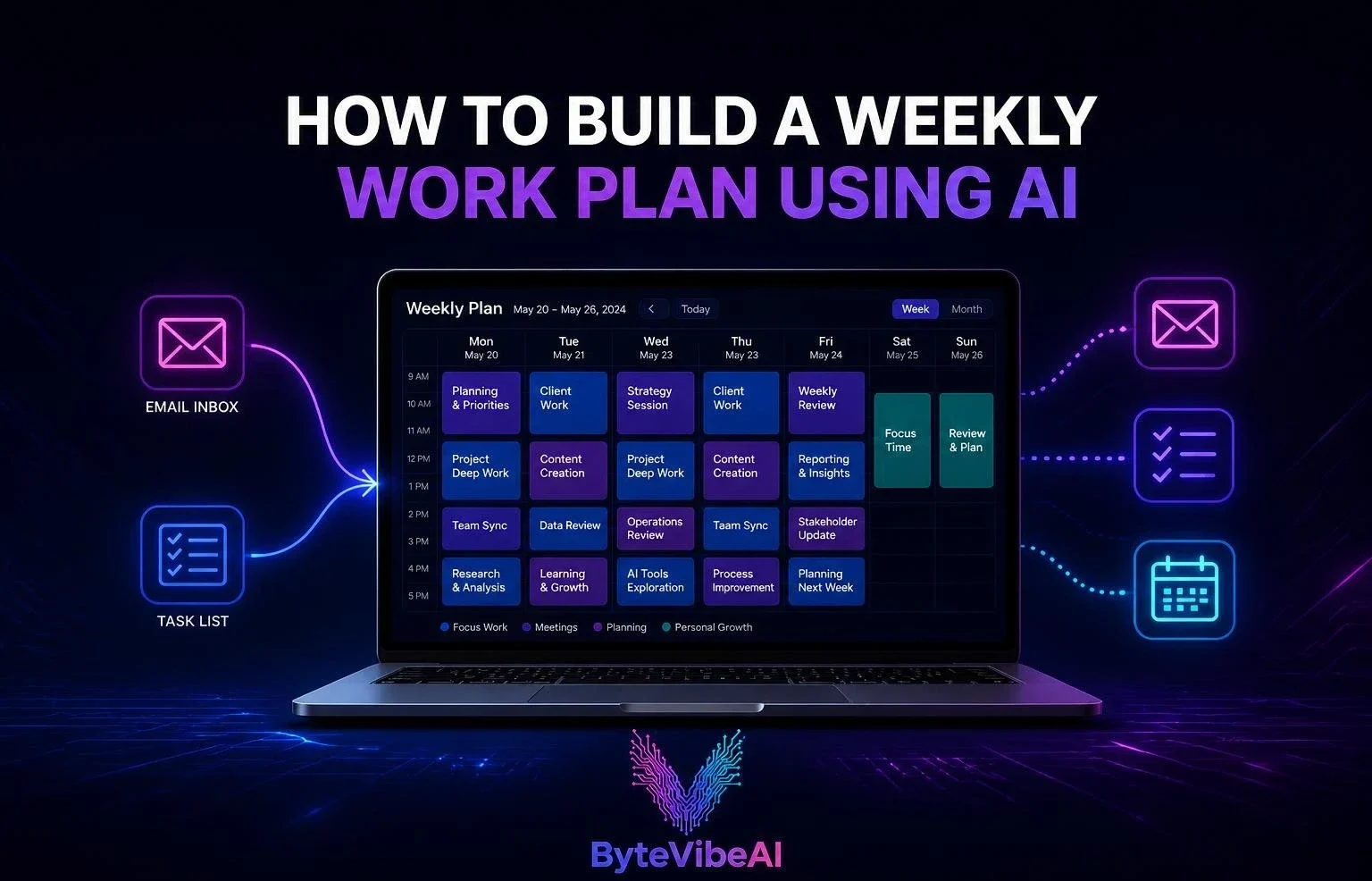
How to Build a Weekly Work Plan From Your Emails, Tasks and Calendar Using AI
Most weeks start the same way: a full inbox, a scattered task list, and a calendar that somehow still has gaps nobody remembers booking. Piecing all three into an actual plan by hand takes longer than it should.
A weekly work plan using AI pulls from all three sources at once, turning emails with action items, half-finished to-do lists, and existing meetings into one realistic schedule for the week ahead.
This guide walks through exactly how to build one, step by step, along with five free tools that handle the heavy lifting. Whether you’re a freelancer, a small business owner, or just tired of starting each Monday from scratch, this works with tools you can set up in an afternoon.
Why Building a Weekly Work Plan Using AI Actually Works
Manually reviewing every email for hidden tasks and cross-referencing it against a calendar takes real time every single week. AI tools handle that matching automatically.
This approach typically helps you:
- Catch tasks buried in emails instead of losing them in a crowded inbox.
- See your whole week in one place instead of three separate tools.
- Protect actual working time instead of letting meetings eat the entire calendar.
None of this replaces your own judgment about what actually matters. But it removes the manual busywork of pulling everything together in the first place.
The Step-by-Step Process
Step 1: Connect Your Email and Calendar. Most tools below connect to Gmail, Outlook, or Google Calendar in a couple of clicks.
Step 2: Let the AI Scan for Tasks. The tool scans recent emails for action items and deadlines that haven’t made it onto a task list yet.
Step 3: Review and Confirm Detected Tasks. AI task detection isn’t perfect, so quickly review what it found and add anything it missed.
Step 4: Let AI Time-Block Your Week. The tool slots confirmed tasks into open calendar space, working around existing meetings.
Step 5: Adjust and Lock In the Plan. Move anything that doesn’t fit your priorities, then treat it as your working schedule.
Quick Overview of the 5 Tools
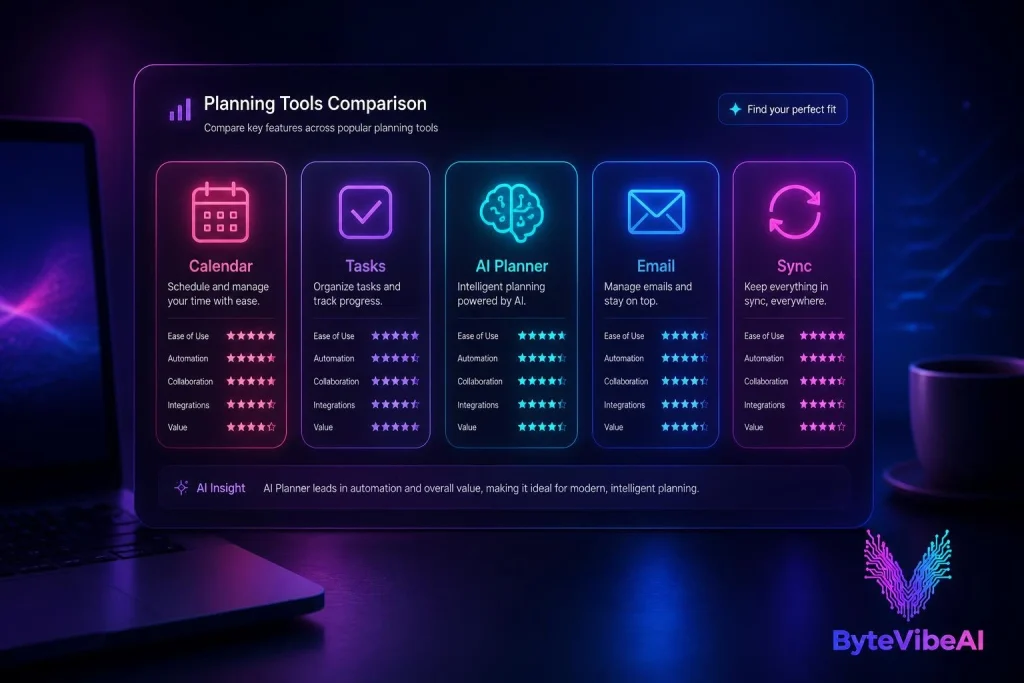
Instead of using a wide comparison table, here’s a mobile-friendly overview.
📅 Reclaim.ai
Best For: Automatic time-blocking around your calendar.
Free Plan: ✅ Available (generous individual plan)
✅ Todoist
Best For: Clean task capture with calendar sync.
Free Plan: ✅ Available
🧠 Trevor AI
Best For: Turning a task list into a scheduled day.
Free Plan: ✅ Available (personal use)
📧 Google Tasks
Best For: Simplest option for existing Gmail users.
Free Plan: ✅ Fully free
🔄 Akiflow
Best For: Pulling tasks from multiple apps into one plan.
Free Plan: ✅ Available (limited features)
How We Selected These Tools
Rather than another list of every AI scheduling app on the market, this focuses on tools that genuinely connect email, tasks, and calendar on a real free plan.
The tools below were chosen based on:
- A free plan that covers actual weekly use, not just a short trial
- Direct integration with Gmail, Outlook, or Google Calendar
- Automatic task detection or time-blocking, not just a plain to-do list
- Genuine usefulness for solo professionals and small teams
We skipped tools where meaningful automation was locked entirely behind a paid plan.
1. Reclaim.ai
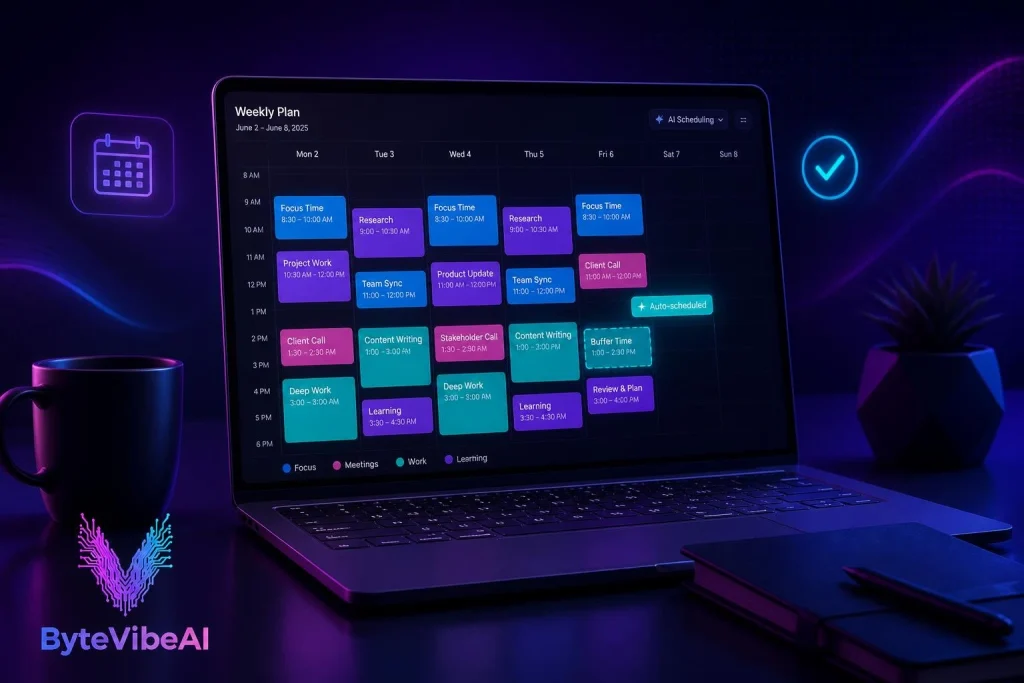
Reclaim.ai automatically finds space in your calendar for tasks, habits, and focus time, adjusting the schedule as new meetings get added.
I connected it to a fairly packed calendar once, and it quietly rearranged task blocks around new meetings without being told twice.
Key Features
- Automatic time-blocking for tasks and habits
- Smart meeting scheduling with buffer time
- Syncs with Google Calendar and Outlook
Pros
- Free plan is genuinely usable, not a stripped-down trial
- Handles rescheduling automatically when meetings shift
- Protects recurring habits and focus time well
Cons
- Task capture from email isn’t as strong as dedicated tools like Todoist
- Initial setup takes a bit of trial and error to get preferences right
Best For
Anyone who wants their calendar to rearrange itself automatically as the week changes.
2. Todoist
Todoist keeps task management simple while offering solid AI-assisted features like natural language due dates and calendar sync, working well as the task-capture layer in this process.
Key Features
- Natural language task entry with automatic due dates
- Two-way calendar sync
- Recurring task support for weekly routines
Pros
- Clean, distraction-free interface
- Free plan covers real personal and small business use
- Fast to capture tasks the moment they come to mind
Cons
- Less automatic time-blocking compared to Reclaim.ai or Akiflow
- Email task detection requires a manual add rather than automatic scanning
Best For
Anyone who wants a dependable, simple task list that syncs cleanly with a calendar.
3. Trevor AI
Trevor AI focuses specifically on turning an existing task list into an actual scheduled day, dragging tasks onto open calendar slots with AI-suggested durations.
Key Features
- AI-suggested time estimates for each task
- Drag-and-drop scheduling onto your calendar
- Focus mode for protected work blocks
Pros
- Free plan is built specifically for personal, everyday use
- Simple visual way to see the whole week at once
- Works well as a companion to a separate task manager
Cons
- Doesn’t scan email directly for new tasks
- Best results require pairing it with a dedicated task app
Best For
Anyone who already has a task list but struggles to actually schedule the work.
4. Google Tasks
For anyone already living in Gmail and Google Calendar, Google Tasks offers the simplest starting point with zero new accounts, even though it’s less automated than the other tools here.
Key Features
- Built directly into Gmail and Google Calendar
- Tasks appear on your calendar by due date
- Convert an email directly into a task with one click
Pros
- No new account or app needed if you already use Gmail
- Fastest possible setup of any tool on this list
- Completely free with no limits
Cons
- No AI-driven automatic scheduling or task detection
- Missing the more advanced planning features of dedicated tools
Best For
Gmail users who want the simplest possible starting point before trying a more advanced tool.
5. Akiflow
Akiflow pulls tasks in from multiple apps at once, including email, Slack, and various task managers, consolidating everything into a single daily and weekly view.
Key Features
- Pulls tasks from Gmail, Slack, and other connected apps
- Drag tasks directly onto calendar time blocks
- Defined work windows for scheduling during your most productive hours
Pros
- Strong fit for consolidating scattered tasks from multiple tools
- Flexible manual control over where tasks land
- Useful work-window feature for protecting peak hours
Cons
- Free plan features are more limited than Reclaim.ai’s
- Best value comes from paid plans once you rely on it daily
Best For
Anyone juggling tasks across several different apps who needs one unified weekly view.
Expert Tips for a Better AI Weekly Plan
A few habits made a real difference once I started building weekly plans this way.
- Set aside 15 minutes every Sunday or Monday morning to review and adjust the AI-generated plan.
- Don’t accept every AI-suggested time block automatically. Adjust anything that doesn’t match your actual energy levels.
- Keep one tool as your source of truth instead of splitting tasks across several apps.
Common Mistakes to Avoid
Even the best free AI planning tools can’t fix a plan you never review. These habits tend to cause the most problems.
1. Trusting the AI Plan Without Reviewing It
An AI-generated schedule can misjudge priority or duration. Always give it a quick review before the week starts.
2. Connecting Every Tool at Once
Adding too many integrations simultaneously creates confusing overlap.
Try sticking to:
- One task manager as your primary source of truth
- One calendar tool handling time-blocking
- Adding new integrations only once the basics feel stable
3. Ignoring Buffer Time Between Tasks
Back-to-back time blocks with no breathing room rarely survive contact with a real week. Build in buffer time deliberately.
Frequently Asked Questions
Which free tool is best for building a weekly plan from scratch?
Reclaim.ai offers the most automated experience on a free plan, while Todoist paired with Trevor AI works well if you prefer separating task capture from scheduling.
Do these tools actually read my emails for tasks?
Some, like Google Tasks, let you convert an email into a task with one click, though fully automatic email scanning is more limited on free plans across most tools.
How long does this process take to set up the first time?
Most people can connect a tool and generate a first weekly plan within 15 to 20 minutes.
Final Thoughts
Building a weekly work plan using AI turns three separate, scattered sources, your inbox, your task list, and your calendar, into one realistic schedule without hours of manual sorting every Monday.
Start with Reclaim.ai if you want the most automated experience, or pair Todoist with Trevor AI if you’d rather keep task capture and scheduling separate. Either way, the fifteen minutes spent reviewing the plan each week is what actually makes it stick.
A full inbox and a messy calendar aren’t going away, but with the right process running in the background, they stop dictating how your week actually goes.
You May Also Like
- Top Free AI Chrome Extensions for Gmail Automation
- How to Build a Custom AI Knowledge Base for Faster Customer Support
- Best Free AI Tools for Graphic Design to Create Logos and Social Media Posts
- Top 5 Free AI Tools For Social Media Copy To Write High-Converting Posts Fast
Call To Action
Visit ByteVibeAI for beginner-friendly tutorials, detailed tool reviews, free AI tools, and actionable guides designed to help bloggers, freelancers, marketers, and business owners create better content and grow their websites.