How to Use Spira AI: Step-by-Step Guide to Automate Your Social Media Videos in 2026
Posting video every day sounds simple until you try to do it. You need ideas, scripts, editing, captions, and then someone has to publish at the right time. For a creator or a social media manager, that routine can swallow most of the week.
Spira AI is built to take a large part of that work off your hands. This guide shows you how to use Spira AI from the first sign-in to publishing and reading your results. I’ll also point out where it helps and where you will still need to step in yourself.
Spira AI at a Glance
| Feature | Details |
|---|---|
| What it is | An AI agent that creates, schedules and publishes social content |
| Best for | Creators, founders, small teams, agencies |
| Platforms | TikTok, YouTube, Instagram (X and LinkedIn listed in plans) |
| Starts at | $15/month (discounted first month) |
| Free start | Advertised, but limited |
| Main catch | You still review posts, and credits run out |
Pricing checked on 7 October 2026.
What Is Spira AI?
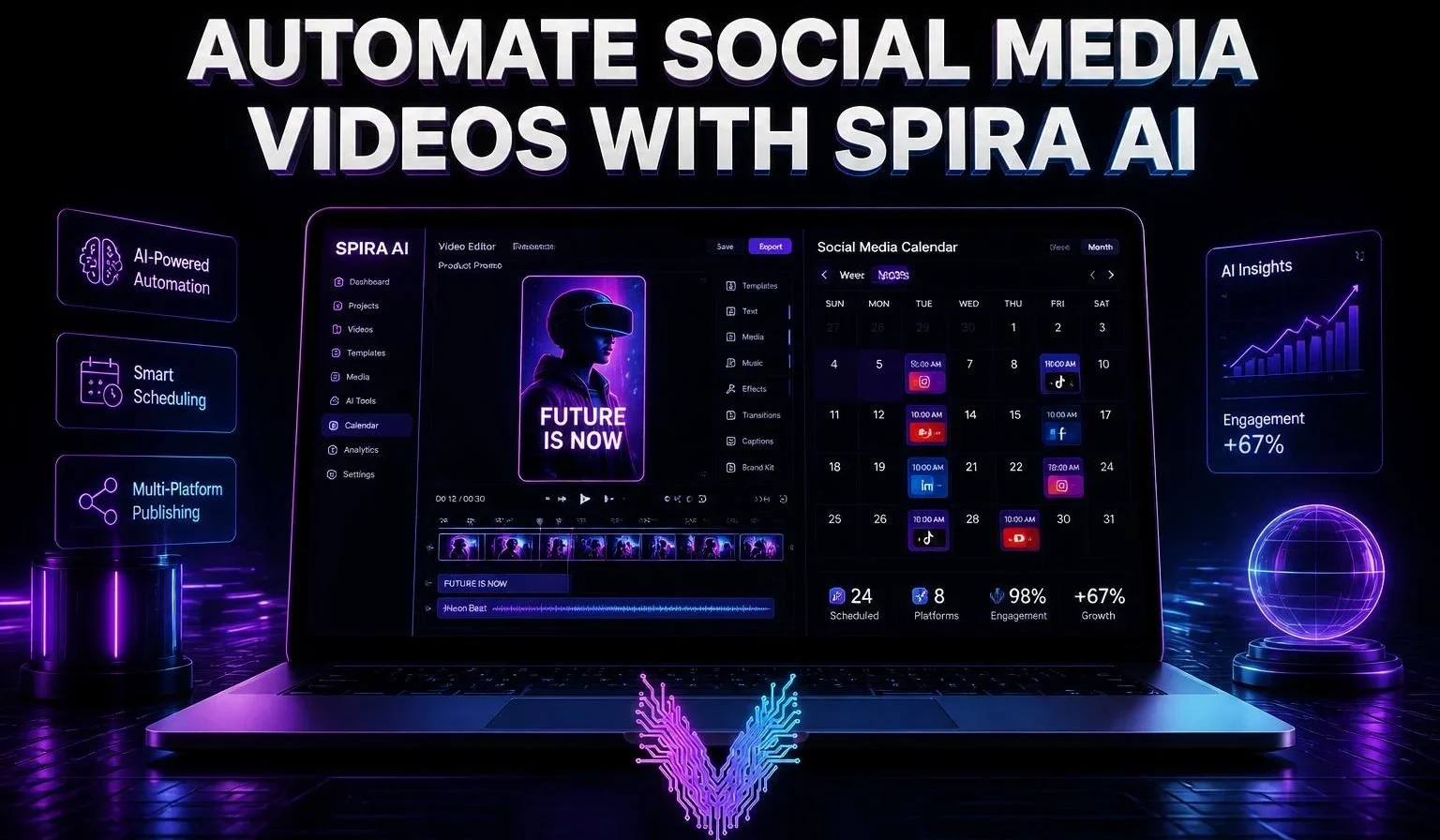
Spira describes itself as a social media agent that creates, posts and grows your channel around the clock. Most AI video tools hand you a finished clip and stop there. Spira tries to cover the whole loop: making the video, planning it in a calendar, posting it, and showing how it performed.
The platform brings several things together under one login. You get video and image generation, a content calendar, native publishing, and analytics that track views, likes and growth for each channel. It also offers a newer model called Spira Maxima, which turns scripts into social-ready videos with motion graphics. When I checked, the site was running a 50% launch-month offer on it.
Who Should Use Spira AI?
The Solutions menu on the site splits the product into three groups:
- Content creators: Turn your voice and visual identity into an always-on publishing system.
- Builders: Builder Mode publishes social content automatically using Brand Machine, Spira’s brand workspace.
- Ecommerce: Marked as coming soon, for product visuals and ads.
In practice, it makes the most sense for solo creators, founders with no time for social media, and agencies running several accounts. If you only post once a week and prefer editing by hand using top free AI video editing tools, you probably don’t need automated agents yet.
How to Use Spira AI: Step-by-Step
Button names inside the app may change as Spira updates, but the workflow stays the same.
Step 1: Create Your Account
Go to spira.ai and use the main call-to-action button. The homepage says you can start free with no credit card, but the pricing page only lists paid plans, so expect the free access to be limited. Check what you get when you sign up.
The sign-in window offers Google, Discord, X, or an email link. Choose the one you’ll remember, because you’ll connect social accounts later.
Step 2: Choose Your Use Case
Decide whether you’re working as a creator or a builder. Creators will care most about voice, face and visual identity. Builders will care more about automatic publishing and brand consistency.
Step 3: Set Up Your AI Influencer and Brand Assets
The AI Influencer is Spira’s featured product, described as an always-on creator that makes the content, posts it and grows the channel.
Give it good material to work with. Upload your logo, product shots, reference videos and a few lines describing your tone. The quality of what comes out depends heavily on what you put in, so this step matters more than any other.
Be specific about your voice. “Friendly” tells the tool very little. “Calm, practical, a bit dry” gives it something to follow.

Step 4: Pick the Right Video Tool
The Tools menu lists the main options:
- Script to Video: Turns a written script into a short video ready to post.
- URL to Video: Turns a product page into a video ad.
- AI Avatar Video: Turns a script into a talking avatar video. You can also check our dedicated guide to create animated AI avatars for social reels.
- Text to Speech: Creates a voiceover from written text.
- Video Translator: Dubs and subtitles a video in twelve languages.
If you’re new, start with Script to Video. Write a short script of around 80 to 120 words, generate it, and judge the result. If you’re exploring other creation options, compare them with our curated list of free AI video generators for TikTok and Reels.
Step 5: Connect Your Accounts and Review Before Posting
Connect the channels you want to publish to. The Platform menu mentions native publishing to TikTok, YouTube and Instagram, while the pricing page lists TikTok, X and LinkedIn for generating and scheduling posts. The supported list may differ by plan or change over time, so confirm your platform is available before you pay.
Review every draft before it goes live. Third-party reviews of Spira say its terms require a preview and your approval before content is posted to connected accounts, and they suggest treating it as supervised automation, not hands-off publishing. That is good practice anyway, because you are responsible for what appears on your channel.
Step 6: Plan Posts in the Content Calendar
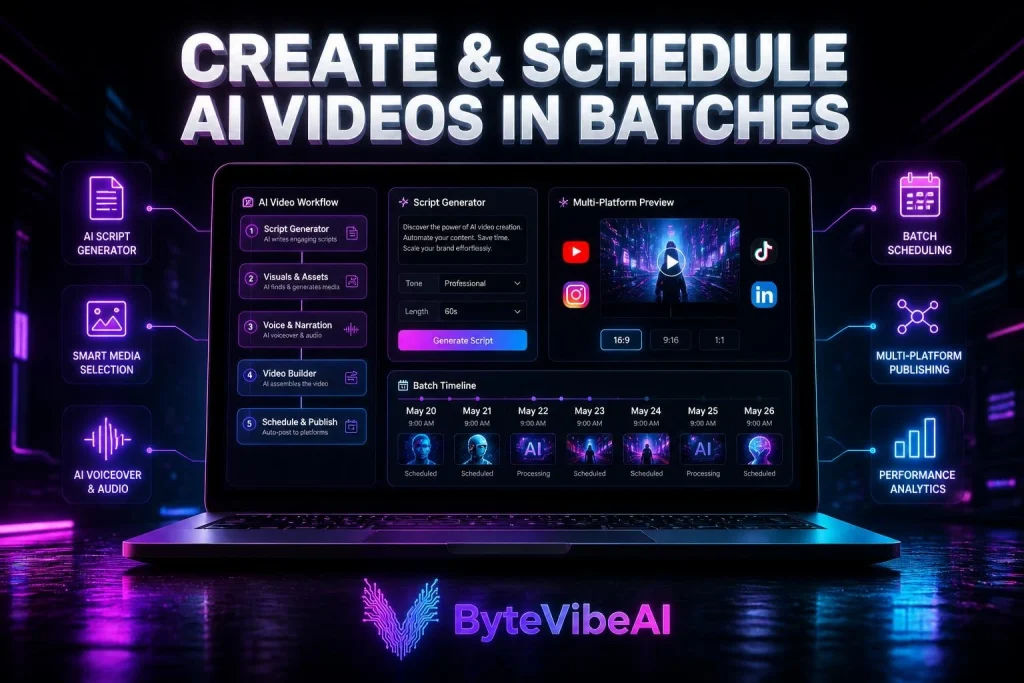
The Content Calendar lets you plan and schedule every post in one view. Spread your videos across the week instead of posting several on the same day.
Step 7: Read the Analytics and Adjust
Social Media Analytics tracks views, likes and growth per channel. Look at which topics and openings did well, then make more of those. Spira says results come from a clear content strategy and recommends giving it around twelve weeks before judging growth.
Other Features Worth a Look
- Automated Channels (marked new): Series that create and post on their own.
- Warmed TikTok Accounts: Accounts prepared so you don’t start from zero.
- Video Ads: Short ad videos generated in minutes.
- AI Video and Image: Access to several third-party models. The site’s footer lists names like Seedance, Kling, Nano Banana Pro and Wan.
Spira AI Pricing and Credits
Spira runs on credits. The pricing page shows three plans, and a launch promotion was running when I checked, so numbers may change.
Creator: $15/month
- About $9 for the first month (40% intro discount)
- 1,200 credits
- 3 influencer agents
- Watermark removed, all video and image models, post generation for TikTok, X and LinkedIn
Growth: $59/month (Most Popular)
- Credits set by a slider: 2,500, 5,000 or 15,000 (the $59 price was shown with 5,000 selected)
- Up to 10 influencer agents
- Everything in Creator, plus scheduling, unlimited social account automation and the lowest cost per credit
Enterprise: Custom Pricing
- Everything in Growth, plus volume discounts, API services, a tailored agentic system, US IPs and physical device traffic, done-for-you service and enterprise security
- Billed annually
There is also an annual billing toggle advertising 40% off. I didn’t see the final yearly prices, so check the page if you plan to pay annually.
What credits actually buy: On the Creator plan, Spira’s own estimate is up to 800 images or up to 340 Seedance videos from 1,200 credits. On the 5,000-credit Growth tier, that rises to roughly 3,333 images or 1,420 videos. These are “up to” figures. Your real numbers will depend on the model, video length and quality you choose.
My advice: Start with Creator, make a small batch, and watch how fast your balance drops before upgrading.
Pros and Limitations
What works well
- Creating, scheduling, publishing and analytics in one place
- Several video and image models under one login
- Brand asset support for a consistent look
- A free sign-up with no card required (full access may need a paid plan)
What to keep in mind
- You still need to review content before it goes out
- Credit use depends on the model and settings, so it takes a few tests to predict your monthly spend
- Output quality depends on the brand material you provide
- The product is new, so features and prices change often
Tips for Better Results
- Start with one platform and one content theme.
- Write short scripts and judge the first five videos before scaling up.
- Keep your logo and brand files clean and consistent.
- Add your own opinion or story to captions. Audiences notice when everything sounds generic.
- Follow each platform’s rules on labeling AI-generated content.
FAQ
Is Spira AI free to use?
The homepage says you can start free without a credit card, but the pricing page lists paid plans starting at $15 per month, with a discounted first month. Check what the free access includes when you sign up.
Which platforms can Spira AI publish to?
The site’s menus mention TikTok, YouTube and Instagram, and the plan details list TikTok, X and LinkedIn. Confirm your platform inside the app before picking a plan.
Does Spira AI post without my approval?
According to third-party reviews describing its terms, content needs a preview and your approval before it is posted to connected accounts.
How long does it take to see results?
Spira suggests around twelve weeks with a clear content strategy.
Is Spira AI good for beginners?
The setup is simple, but beginners should still learn the basics of strong video openings and review every draft.
Final Thoughts
Learning how to use Spira AI comes down to a simple routine. Set up your brand properly, create in small batches, review everything, and let the analytics guide your next round. It won’t replace your judgment, but for people who struggle to post consistently, it can remove a lot of repetitive work.
If you try it, start small, make a handful of videos, and see whether the style fits your audience before you spend on a bigger plan.
Call To Action
Want more practical AI video creation tips, social media automation strategies, and productivity guides?
Visit ByteVibeAI for beginner-friendly tutorials, detailed tool reviews, AI video resources, and actionable guides designed to help creators, freelancers, marketers, and business owners create better content and grow their channels.